

Prerequisites
- An active Intuned account (sign up here). No credit card required—Intuned has a free plan
- Basic familiarity with TypeScript or Python
Create and deploy your first authenticated RPA
You can develop Intuned Projects in two ways:- Online IDE — Zero setup. Write, test, and deploy directly from your browser.
- CLI — Local development with full version control and CI/CD integration.
- Online IDE
- Intuned CLI
Log in and create project
- Go to app.intuned.io/projects and log in.
- Select Create Project.
- Select your language (TypeScript or Python).
- Choose the rpa-auth-example template.
- Name it
book-consultations-authenticated-quickstart. - Ensure IDE is selected as Type.
- Select Create and Open.
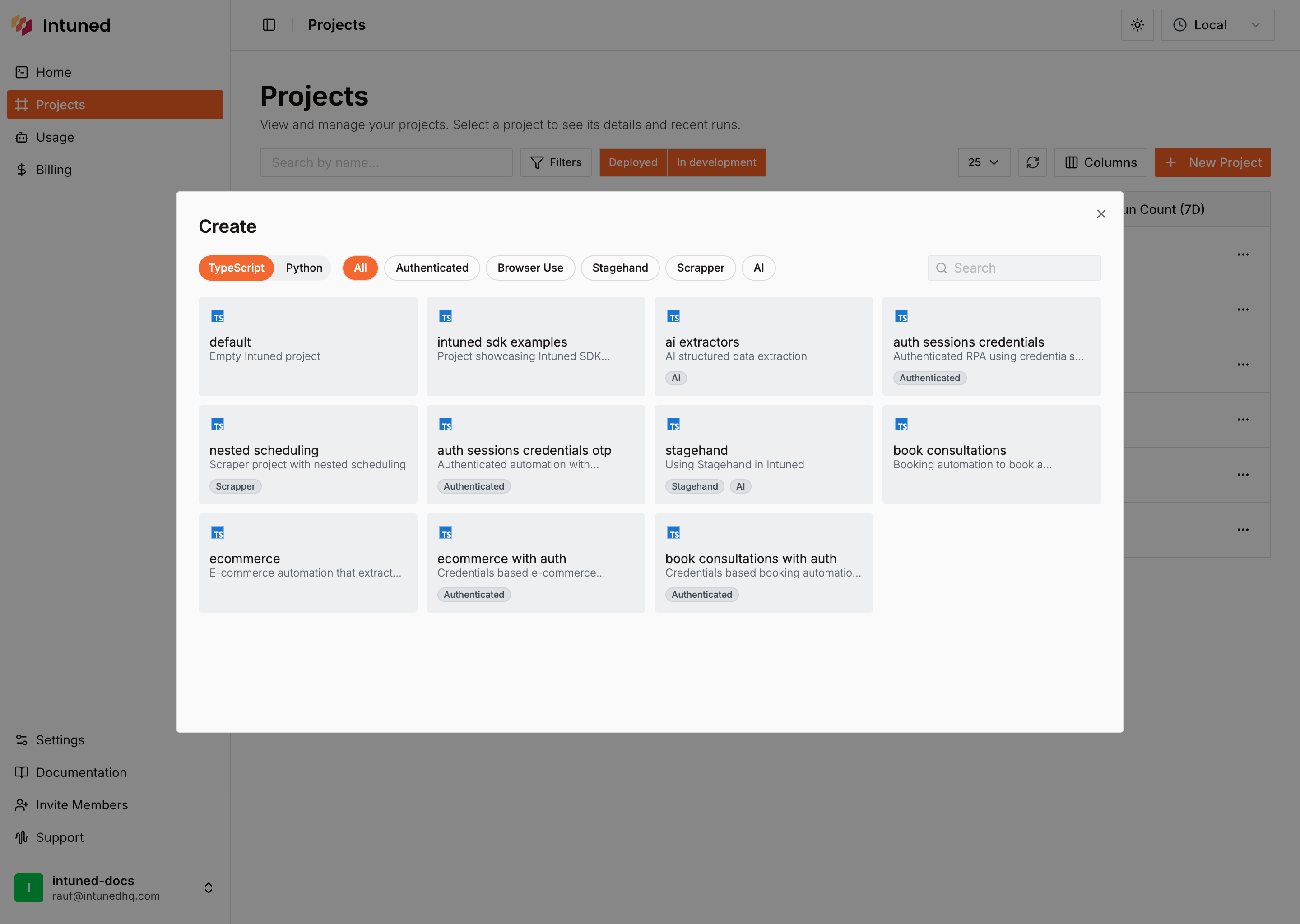
What you just got: An Intuned Project groups related browser automations together. Each file in the api/ folder becomes a callable function that controls a browser using Playwright, accepts parameters, and returns results. When working with sites that require login, you can create AuthSessions that store and manage login states, allowing your automation APIs to run authenticated actions without logging in every time. When you deploy the project, all its APIs go live together as a single deployable unit.
Explore the project code
In the file explorer, you’ll see the API file:
api/book-consultations - A complete automation that:- Navigates to the booking form
- Fills in personal details (name, email, phone)
- Selects date, time, and consultation topic
- Submits the form and verifies success
auth-sessions/ that contains two special APIs:auth-sessions/create- Defines how to perform your login flow. It receives credentials as input parameters and automates your login process, saving the captured browser state and cookies to be reused later.auth-sessions/check- Checks if the current session is still valid or if a new login is required. This API executes automatically before every Run, ensuring your automation always has a valid authenticated session.
Validate your AuthSession
First, let’s set up authentication. You’ll have a pre-created test AuthSession with credentials that you can use. Let’s run an AuthSession:Validate Run that will run the
check API; and if it fails, it will automatically run the create API to log in and create a new session state.In the top toolbar:- Select AuthSession: Validate from the API dropdown.
- Select test-authsession from the AuthSession dropdown.
-
Select the Run button.
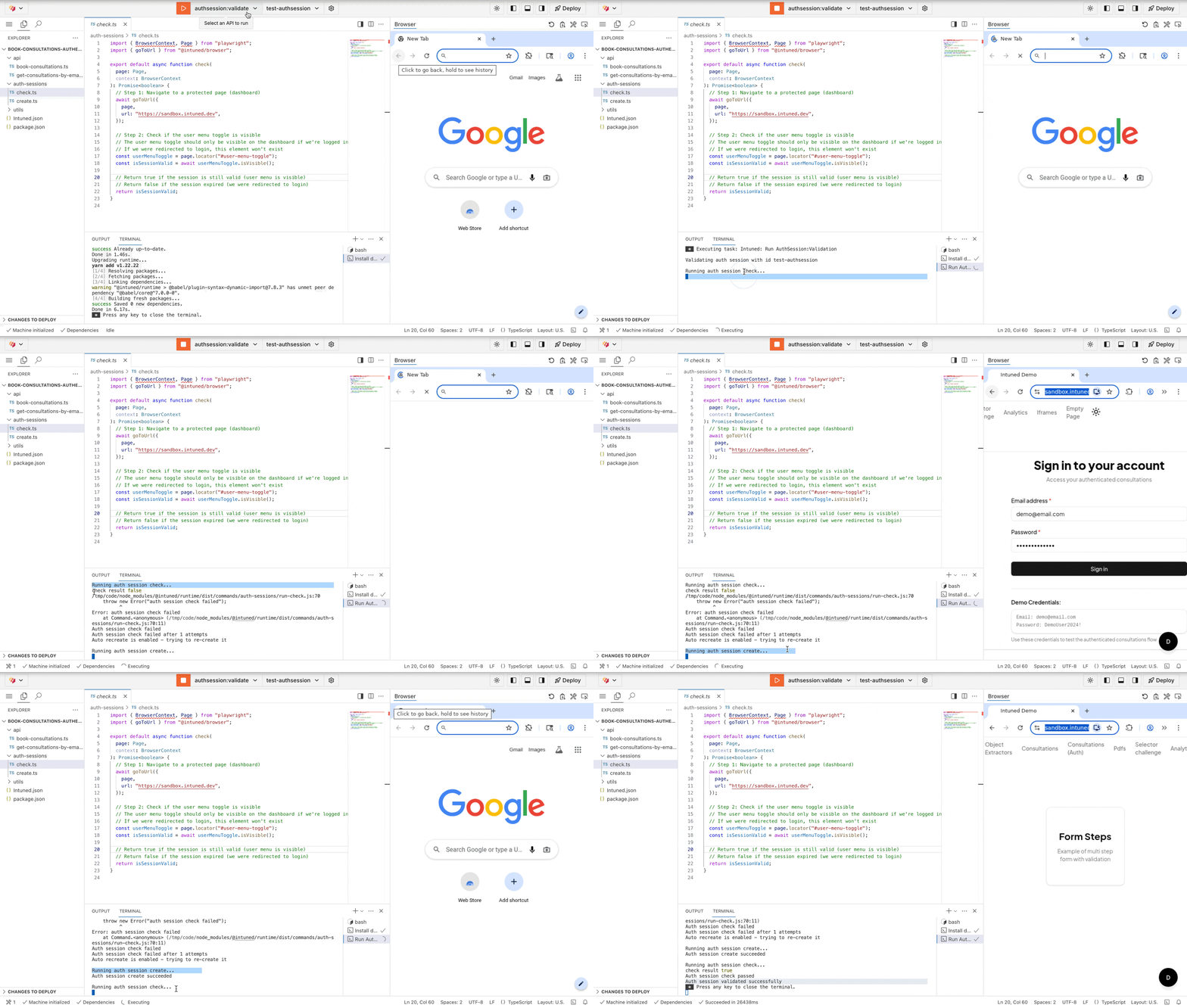
check API runs and fails (no session state exists yet), then the create API runs to log in and create a new session, and a subsequent check API runs and passes. Your AuthSession is now ready to be used by your automations in the IDE!Run your automation in the IDE
Test the automation to see it working right in the IDE.
- Select API: book-consultations from the API dropdown.
- Make sure the test-authsession AuthSession is selected as well, so the API can run authenticated with this valid session.
- Select Web Scraping Consultation next to it—you’ll see pre-filled test data already configured.
-
Select the Run button.
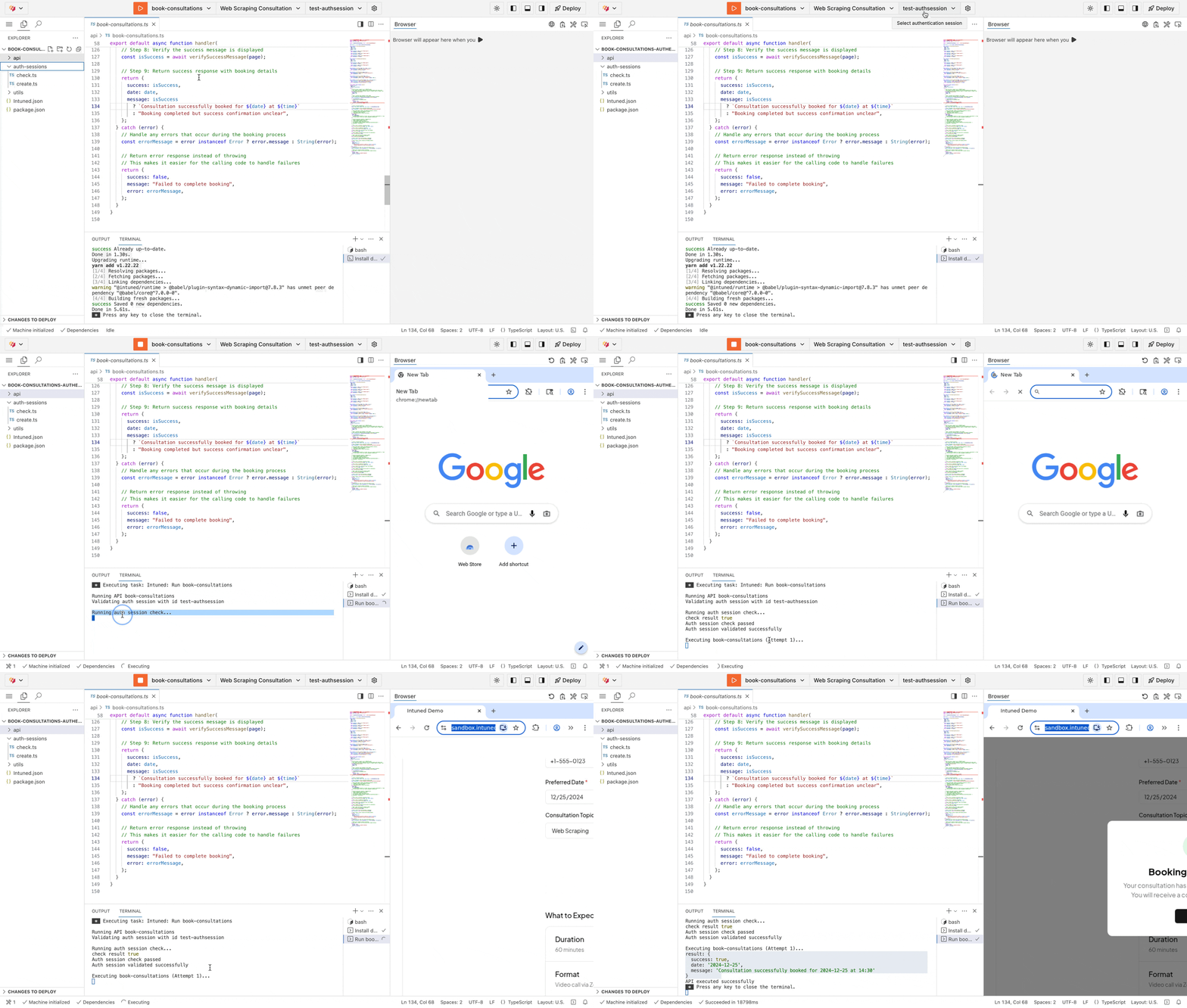
check API to verify your AuthSession. You’ll see it navigate to the booking form, fill in all fields, submit, and verify success. The terminal below displays the result of the Run.Deploy your project
Deploy your automation to Intuned’s infrastructure.
- Select the Deploy button in the top-right corner of the IDE.
- Leave Create test AuthSession toggle selected. This will create a
test-auth-sessionAuthSession so you can use for testing. - In the deployment dialog, select Deploy to start.
- Watch the live deployment logs until you see “Ready”.
Test in the Playground
Now test your deployed authenticated automation through the API Playground.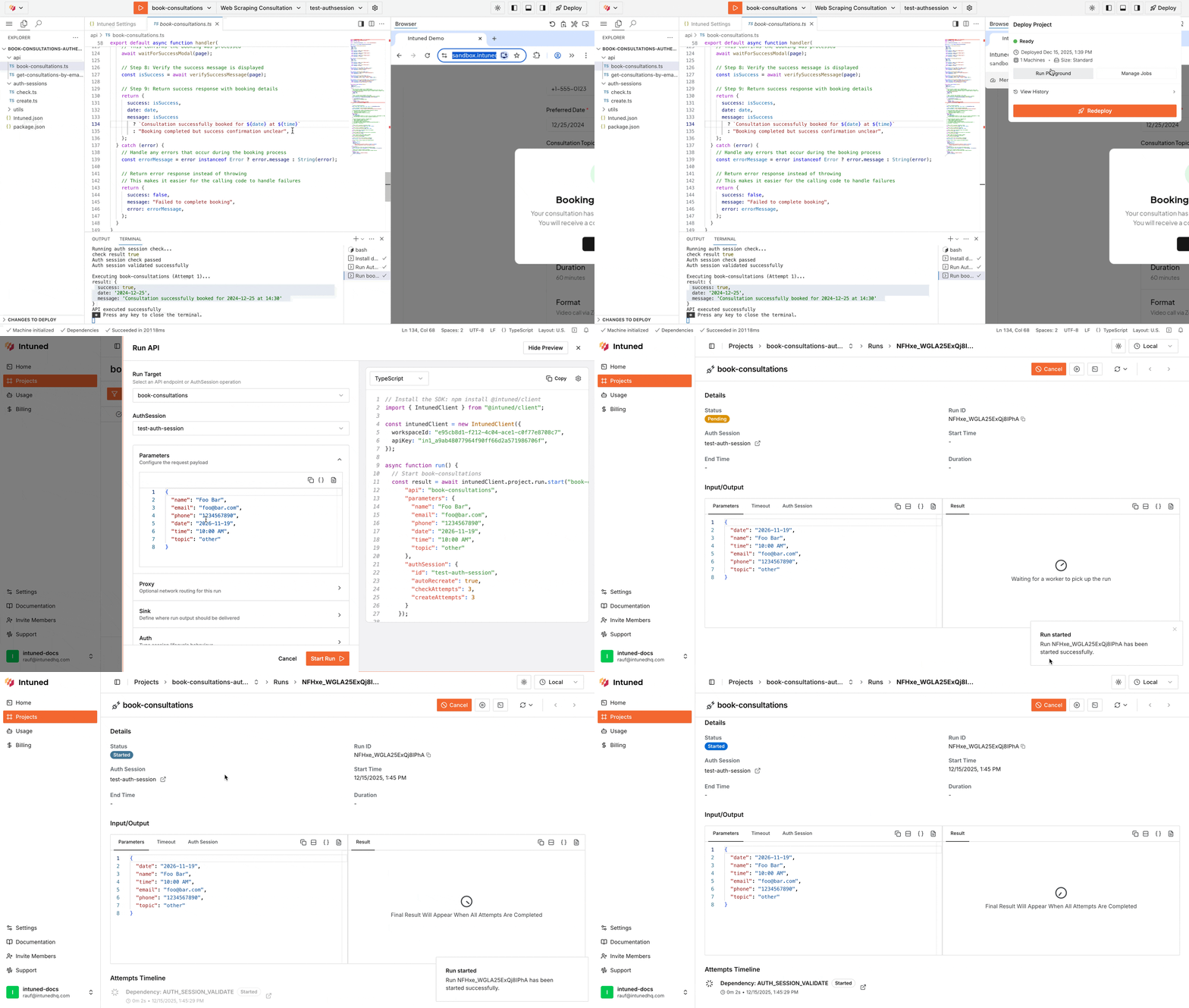
- In the deployment success dialog, select Run in Playground.
- In the Playground, you’ll see your deployed API book-consultations ready to call. The newly created test AuthSession is selected.
- The request body is pre-filled with test parameters. Select Start Run to execute.
What’s next?
- Online IDE — Learn more about the Intuned IDE used in this quickstart.
- Local development (CLI) — Learn more about the Intuned CLI used in this quickstart.
- Authentication — Learn more about AuthSessions, how to create them, and best practices for handling authentication in your automations.
- Monitoring and traces — Every run generates detailed logs, browser traces, and session recordings. Use these tools to debug failures, verify your automation is working correctly, and understand what happened during execution.
- Flexible automations — Build automations your way. Write deterministic code, use AI-driven extraction, or combine both in a hybrid approach. Use any library or package—Intuned is unopinionated by design.
- Intuned Agent quickstart — You can write your automation logic manually like in this quickstart, or use Intuned Agent to generate automations from a prompt and schema. Intuned Agent can also help you update existing automations, fix failed runs, and iterate on your code faster.
- Cookbook — Browse full working examples of automations and scrapers. Each example includes complete code you can use as a starting point for your own projects.