

Overview
Jobs are blueprints that define when, how, and what browser automations to execute. Instead of triggering individual API runs manually, Jobs let you orchestrate multiple automation executions together—running them in bulk, on a schedule, or both. They handle scheduling, retries, concurrency management, and result aggregation. The most common use case: set up a scraper to run on a schedule and configure a sink to deliver results directly to your system. You create the scraper, configure the Job with a schedule and a webhook or S3 sink, and the data flows into your service automatically—no polling or manual exports required.Usage
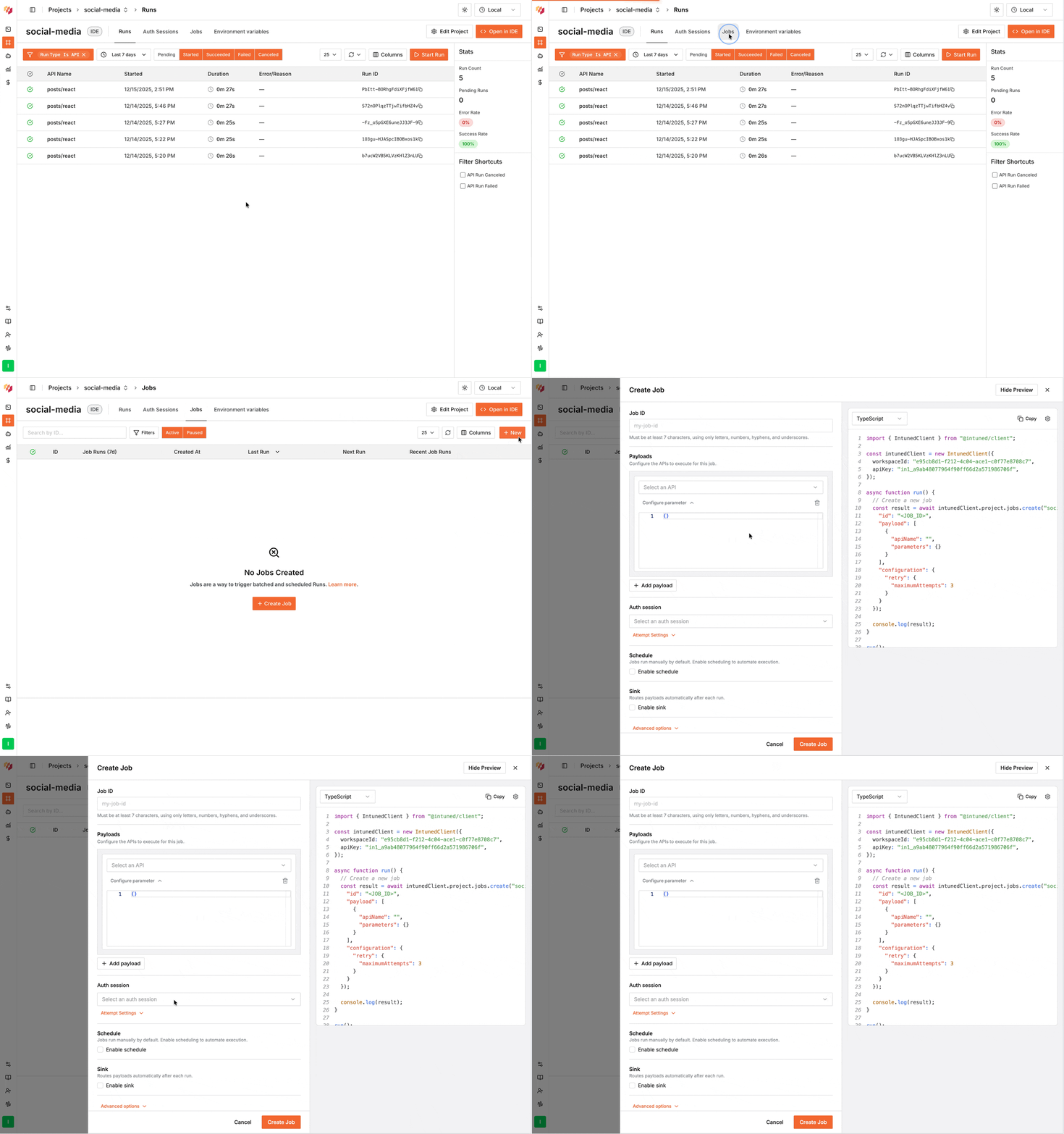
Create a Job
- Dashboard
- API
- Code
Trigger a JobRun
A Job can have a schedule, but the schedule is optional. Even if a Job has a schedule configured, you can trigger it on-demand whenever you want. Each trigger creates a new JobRun.- Dashboard
- API
Monitor a Job
Intuned provides full observability into every JobRun, giving you complete visibility into what happened and why. Each execution generates detailed logs, browser traces, and session recordings that help you debug issues and understand your automation’s behavior.- Dashboard
- API
Pause and resume a Job
Pausing a Job stops new JobRuns from starting and prevents in-progress JobRuns from executing new payload items. Currently running Runs will be canceled and retried when you resume. Use pause when you need to temporarily stop execution—for example, to fix an issue or update credentials.- Dashboard
- API
Pause: Navigate to the Jobs tab, select … next to the Job, then select Pause.Resume: Select … next to the paused Job, then select Resume. This re-enables scheduling and continues any paused JobRuns from where they left off.
Terminate a JobRun
Terminating immediately stops a specific JobRun instance. All in-progress Runs are canceled, and no further payload items execute. Use terminate when you need to stop a JobRun completely—for example, if it was triggered by mistake or is no longer needed.- Dashboard
- API
Delete a Job
Deleting a Job removes it permanently from your Project. Any in-progress JobRuns will be terminated. You cannot undo this action.- Dashboard
- API
Extend Run timeout
Jobs have arequestTimeout configuration that controls how long each Run Attempt can take before it fails. The default is 600 seconds (10 minutes). For long-running automations, call extendTimeout to reset the timer:
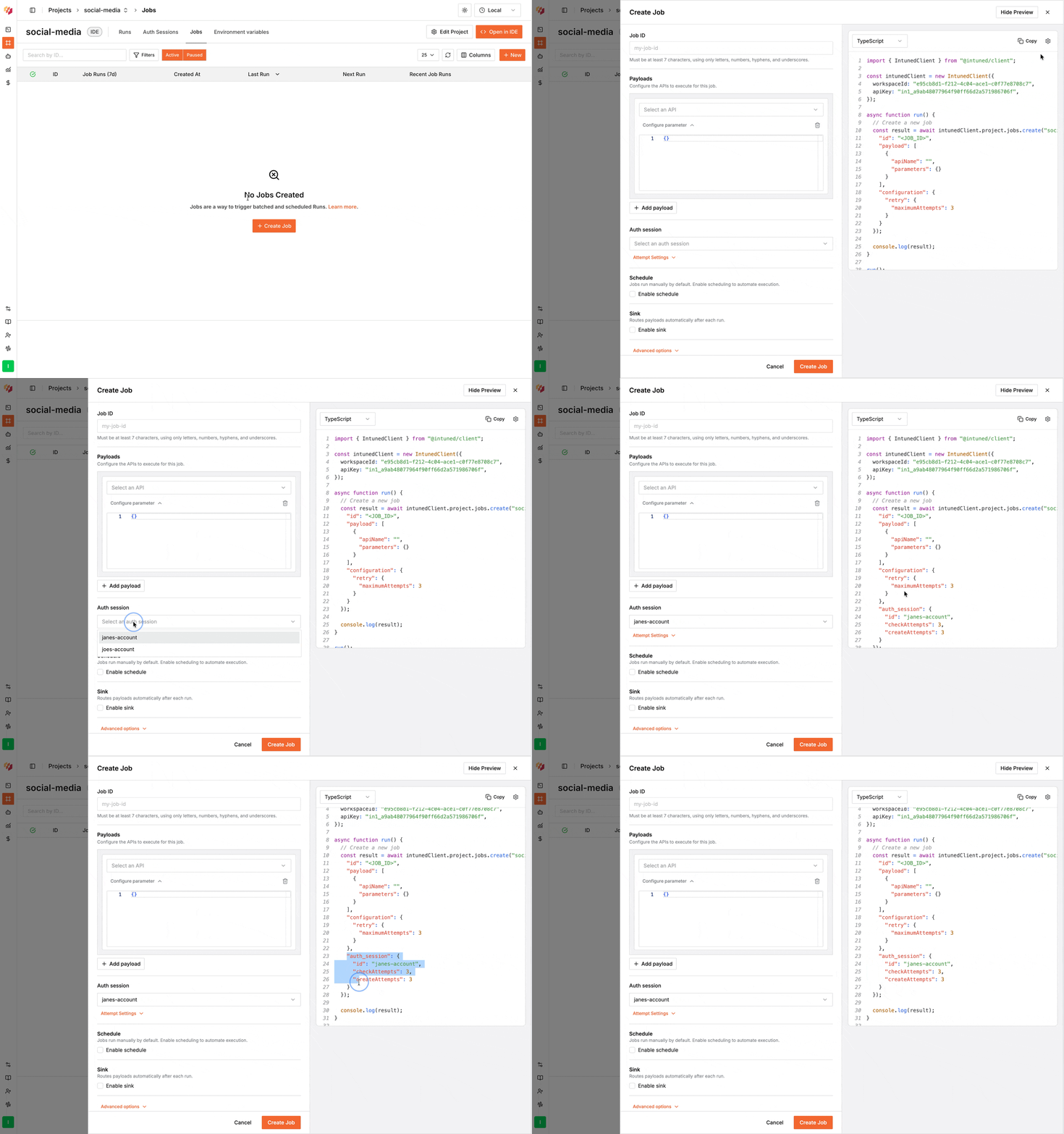
Use Jobs with AuthSessions
Jobs fully support AuthSessions. When you configure a Job for an authenticated Project, specify the AuthSession in the Job configuration. All Runs in the JobRun use the same AuthSession, including extended Runs added viaextendPayload.
Extend Jobs dynamically
Jobs support nested scheduling, where an API can dynamically extend the JobRun’s payload during execution using theextendPayload function. This is useful when the full scope of work isn’t known until you start executing—for example, scraping an e-commerce site where product URLs aren’t known upfront:
extendPayloadonly works within JobRuns (not standalone Runs)- Extended items are added to the same JobRun and tracked together
- Extended items respect the Job’s retry and concurrency configuration
- Extended items automatically inherit the JobRun’s AuthSession
- You can call
extendPayloadmultiple times within a single API execution
Configuration reference
Job configuration is defined using a JSON schema. The platform dashboard provides a guided wizard to help you set these values through the UI, or you can use the API to send the configuration directly.Basic Job structure
Every Job requires an ID and payload. Here’s a minimal example:Payload configuration
Thepayload array defines what APIs to execute:
| Field | Description |
|---|---|
apiName | The name of the API to run (must exist in your Project) |
parameters | Parameters to pass to the API |
retry (optional) | Override Job-level retry setting for this payload item |
Execution configuration
| Field | Default | Description |
|---|---|---|
maximumAttempts | 3 | Default maximum attempts for each payload item |
maximumConcurrentRequests | Project default | Maximum payload items executing simultaneously |
requestTimeout | 600 | Seconds to wait for each Run attempt before failing |
Schedule configuration
Jobs support two scheduling methods: Intervals — Run every X period:"1h", "30m", "7d".
Calendars — Run at specific times:
"hour": 9), ranges ("hour": { "start": 9, "end": 17 }), and wildcards ("month": "*").
Jobs trigger when any interval or calendar condition is met. If you
configure both “every 7 days” and “first of every month”, the Job runs when
either condition occurs.
Sink configuration
Send Job results to external systems. See the Sinks API reference for detailed options. Webhook:AuthSession configuration
Jobs use
auth_session (snake_case) in all languages and SDKs, including
TypeScript. This is different from runs, which use authSession (camelCase)
in TypeScript.| Field | Default | Description |
|---|---|---|
id (required) | — | The ID of a credential-based AuthSession |
checkAttempts | 3 | Times to validate before each Run attempt |
createAttempts | 3 | Times to recreate if invalid |
Best practices
- Keep APIs focused: Design each API to handle a single concern. Use Jobs to orchestrate multiple APIs rather than building monolithic automations.
-
Use nested scheduling for discovery patterns: When scraping lists before details, use one API to discover items and
extendPayloadto process each. -
Limit concurrency for rate-limited targets: Set
maximumConcurrentRequeststo 1-5 for rate-limited sites. Increase for robust targets. -
Include metadata in parameters: Pass identifiers or context (
{ "category": "electronics", "batchId": "2024-10-16" }) for easier debugging. - Use sinks for production workflows: Configure webhooks or S3 to automatically capture results rather than manually exporting.
- Test before scheduling: Create a QA instance of your Job (no schedule or sink) to test manually before setting up the production version.
- Use service account AuthSessions: Use dedicated service accounts rather than personal credentials for clearer audit trails.
- Monitor JobRun history regularly: Check for patterns in failures. Consistent failures in specific payload items may indicate API issues.
Limitations
- Execution order is not guaranteed: Payload items may execute in any order depending on concurrency and worker availability.
-
Extended payload items execute asynchronously: Items added via
extendPayloadare queued and execute as workers become available. - No conditional execution within Jobs: Jobs execute all payload items. Use nested scheduling and API-level logic for conditional workflows.
- Schedule precision: Scheduled JobRuns trigger within a reasonable window but not at the exact millisecond.
- Sink delivery is at-least-once: Results may be delivered multiple times in rare failure scenarios. Handle duplicates idempotently.
- AuthSession is shared across all Runs: You cannot use different AuthSessions for different payload items within the same JobRun.
- Only credential-based AuthSessions support auto-recreation: Recorder-based AuthSessions must be manually recreated when they expire.
FAQs
What's the difference between Jobs and direct Run API calls?
What's the difference between Jobs and direct Run API calls?
Direct Run API calls execute a single API immediately. Jobs orchestrate multiple API calls together with scheduling, retries, and concurrency management. Use direct Runs for one-off executions; use Jobs for batch processing and recurring automations.
Can I modify a Job's payload after creating it?
Can I modify a Job's payload after creating it?
Yes. Changes apply to future JobRuns—they don’t affect JobRuns currently in
progress.
How do I pass different parameters to the same API multiple times?
How do I pass different parameters to the same API multiple times?
Include multiple payload items with the same
api value but different
parameters. Each creates a separate Run.What happens if my API calls extendPayload multiple times?
What happens if my API calls extendPayload multiple times?
Each call adds items to the current JobRun’s queue. All extended items are
tracked together and execute according to the Job’s concurrency and retry
settings.
Can I use different AuthSessions for different APIs in the same Job?
Can I use different AuthSessions for different APIs in the same Job?
No. All Runs within a JobRun use the same AuthSession. Create separate Jobs
for different AuthSessions.
How does authentication work with nested scheduling?
How does authentication work with nested scheduling?
Extended Runs automatically inherit the JobRun’s AuthSession. You don’t need
to specify authentication for extended payload items.
What happens if a scheduled Job triggers while a previous JobRun is still running?
What happens if a scheduled Job triggers while a previous JobRun is still running?
The new scheduled JobRun will not start while an older JobRun is still in progress. Intuned prevents overlapping JobRuns to avoid resource conflicts and ensure predictable execution. Once the running JobRun completes, the next scheduled trigger will start normally. If you need parallel execution, consider splitting your Job into multiple Jobs with different parameters or increasing concurrency within a single JobRun.
Related resources
AuthSessions
Authenticated browser automations
Jobs API reference
Programmatic Job management
Sinks API reference
Webhook and S3 result delivery
Monitoring and traces
Debug and monitor Job executions