

Overview
Stagehand is an AI-powered browser automation framework with methods likeobserve(), extract(), and act().
This guide walks you through deploying and running a Stagehand project on Intuned. You’ll build a sample scraper that extracts book data—without writing Playwright selectors or custom parsing logic. The same patterns apply to any automation you build with the framework.
This guide assumes you have a basic understanding of Intuned projects. If you’re new to Intuned, start with the getting started guide.
When to use AI automation
Intuned supports AI-powered browser automation frameworks like Stagehand, Browser Use, and others. Use AI automation when:- Pages are dynamic — Elements change position, structure, or content unpredictably
- You don’t know the exact page structure — Scraping sites you haven’t mapped in detail
- You want natural language control — Describe what to do instead of writing precise selectors
- Traditional Playwright code is too brittle for your case — AI agents adapt to minor UI changes automatically
Guide
Let’s build agetBooks API with AI. The template handles all the Stagehand setup for you.
You can develop with Stagehand in two ways:
- Online IDE — Zero setup. Write, test, and deploy directly from your browser.
- CLI — Use your favorite IDE with full version control.
- Online IDE
- CLI
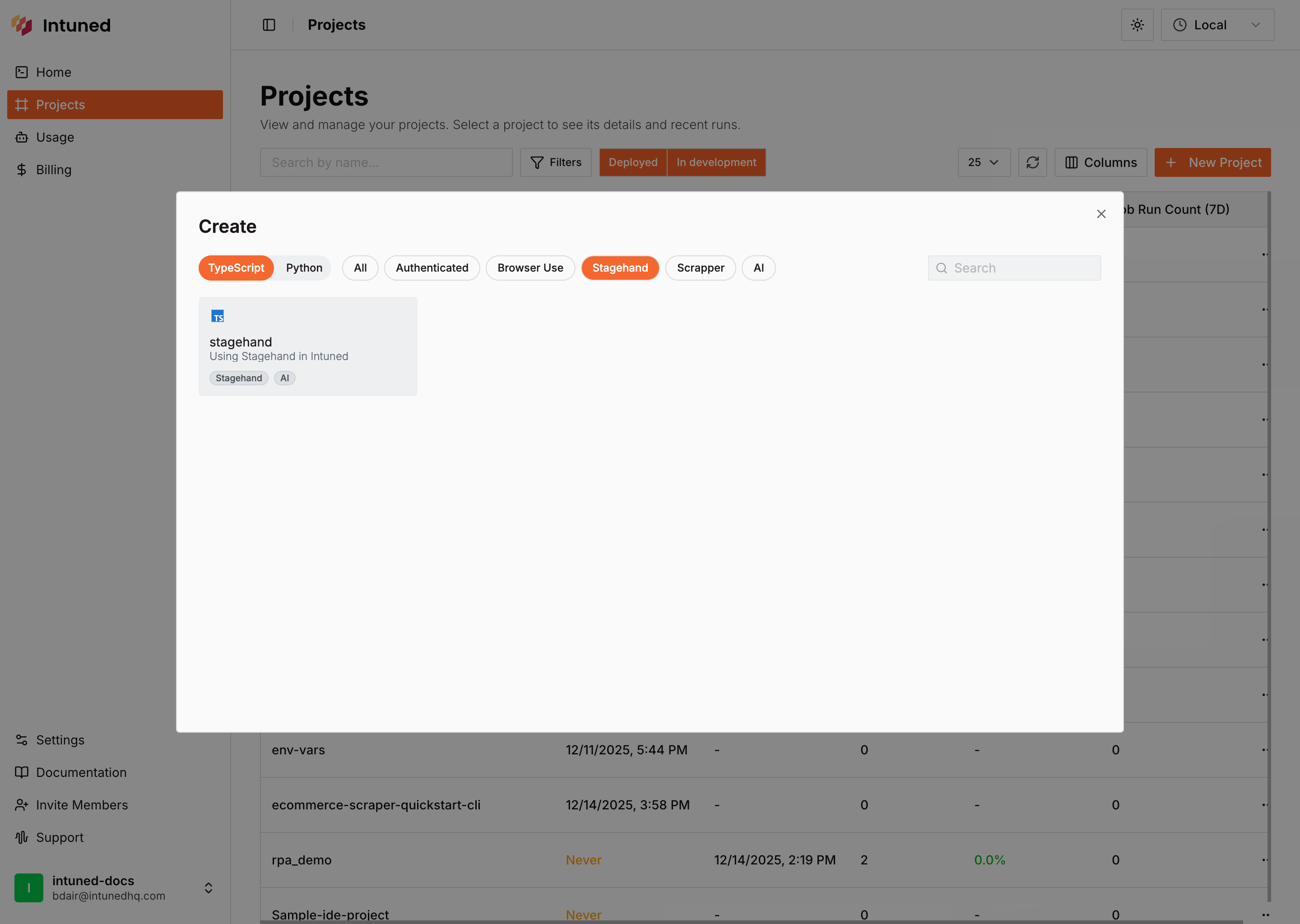
Create a project
- Go to Intuned dashboard
- Select + New Project > Templates > Stagehand
- Select your language (Python or TypeScript)
- Name it and select Create Project
Explore the project
The template includes a book scraper API that combines Playwright with AI agents.Project structure:The automation code:
- TypeScript
- Python
Python
What this does: Navigates to https://books.toscrape.com, uses Stagehand’s
observe() and act() methods to navigate to a specific category, then uses extract() to collect book details across multiple pages. TypeScript uses Zod schemas; Python uses a JSON schema dict validated into Pydantic models.Run your automation
Run the book scraper to test your setup.
- In the Online IDE, select the API from the dropdown
- Select Select Parameter and enter
{"category": "Travel"} - Select Start Run
Deploy and test
Deploy your automation to Intuned’s infrastructure.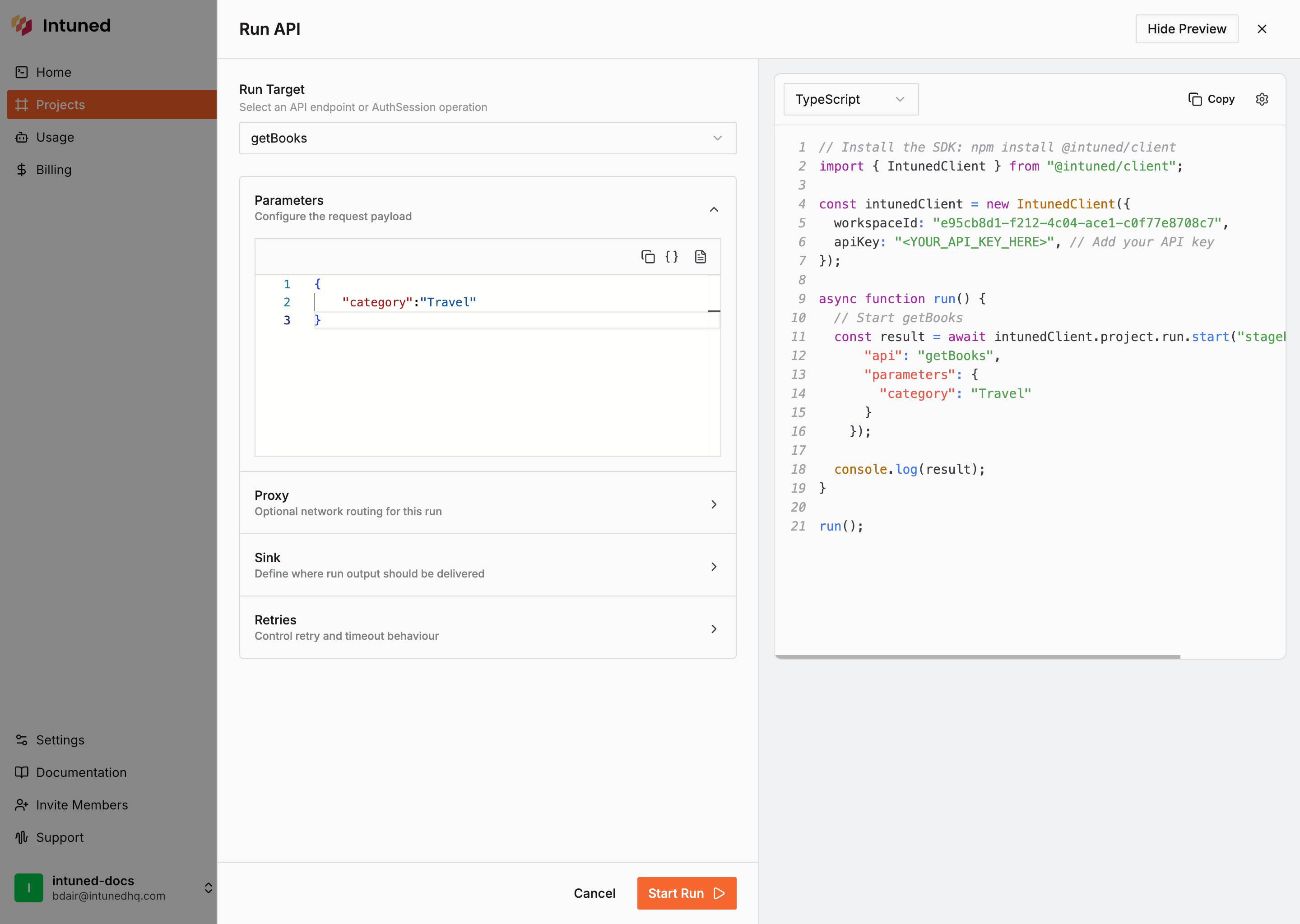
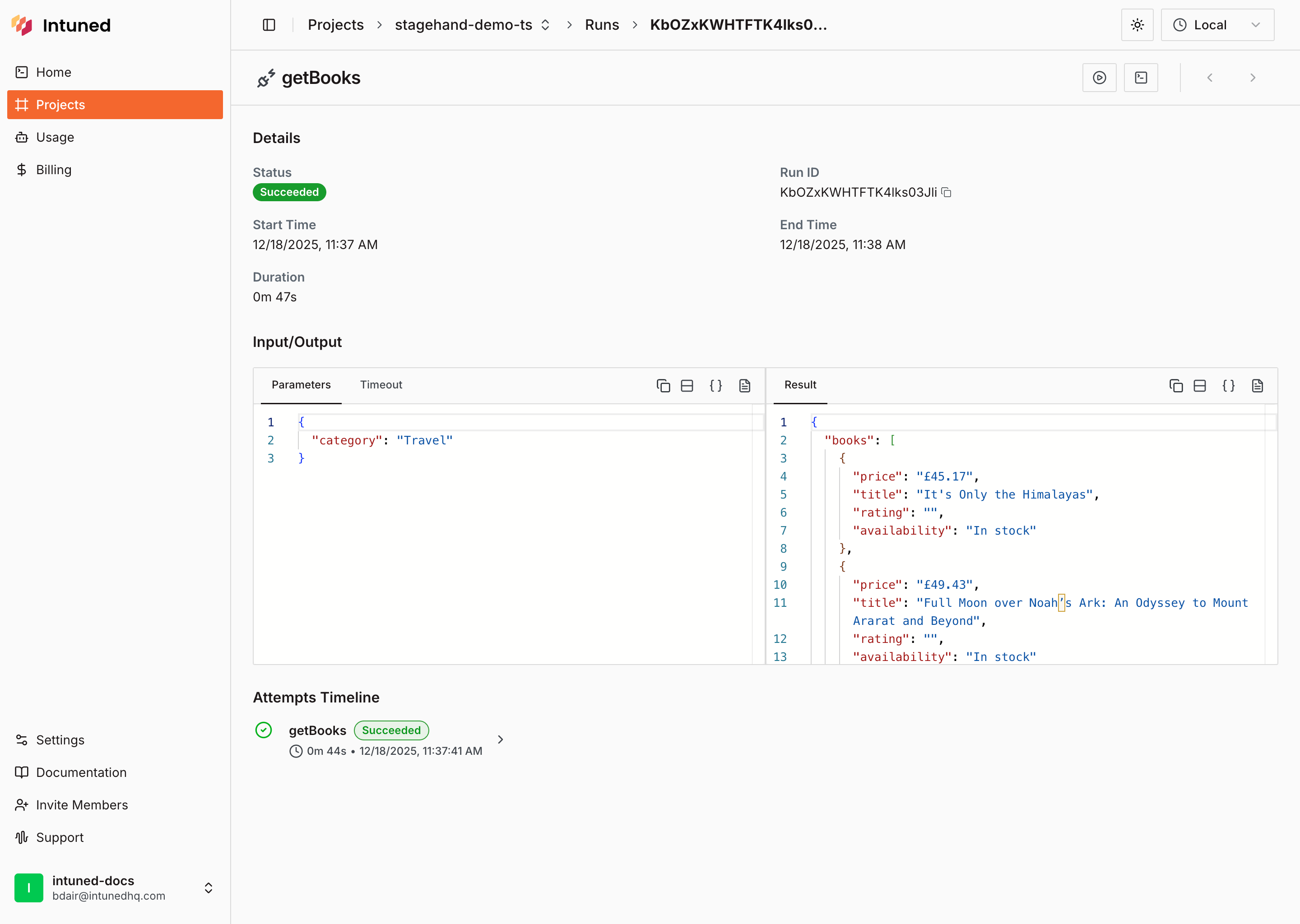
- In the Online IDE, select Deploy in the top-right corner
- After deployment completes, go to the project’s Runs page
- Select Start Run, then choose your API
- Enter parameters:
{"category": "Travel"}and select Start Run
- After the run completes, view the extracted results
How it works
- The
setupContexthook stores the CDP URL inattemptStorefor your API to access
- Your API initializes Stagehand with the CDP URL and AI gateway credentials from
getAiGatewayConfig() - Stagehand provides three core AI-powered methods:
observe()- Find elements on the page using natural languageact()- Perform actions like clicking using natural languageextract()- Extract structured data from the page with type-safe schemas
- TypeScript
- Python
- Passes AI credentials via the
modelconfig (modelName,apiKey,baseURL) - Call methods directly on
stagehand(e.g.,stagehand.act(),stagehand.extract()) - Use the Playwright
pagefor navigation (e.g.,page.goto())
- Your API accepts parameters (like
category) that can vary for each run - The automation handles pagination automatically and cleans up Stagehand when done
Related resources
Stagehand Documentation
Official Stagehand documentation and API reference
Stagehand GitHub
View the source code and contribute to Stagehand
Intuned Cookbook
Browse examples and recipes for Intuned projects
attemptStore Reference
Learn more about sharing data between hooks and APIs