

Overview
Intuned allows you to develop your projects using the online IDE or locally using the CLI. This guide focuses on the online IDE. You should use the online IDE when:- You want zero setup—just open your browser and start coding.
- You’re using Intuned Agent to build and edit automations.
- You need platform features like stealth mode and captcha solving.
- You’re working solo on smaller projects.
Create a project
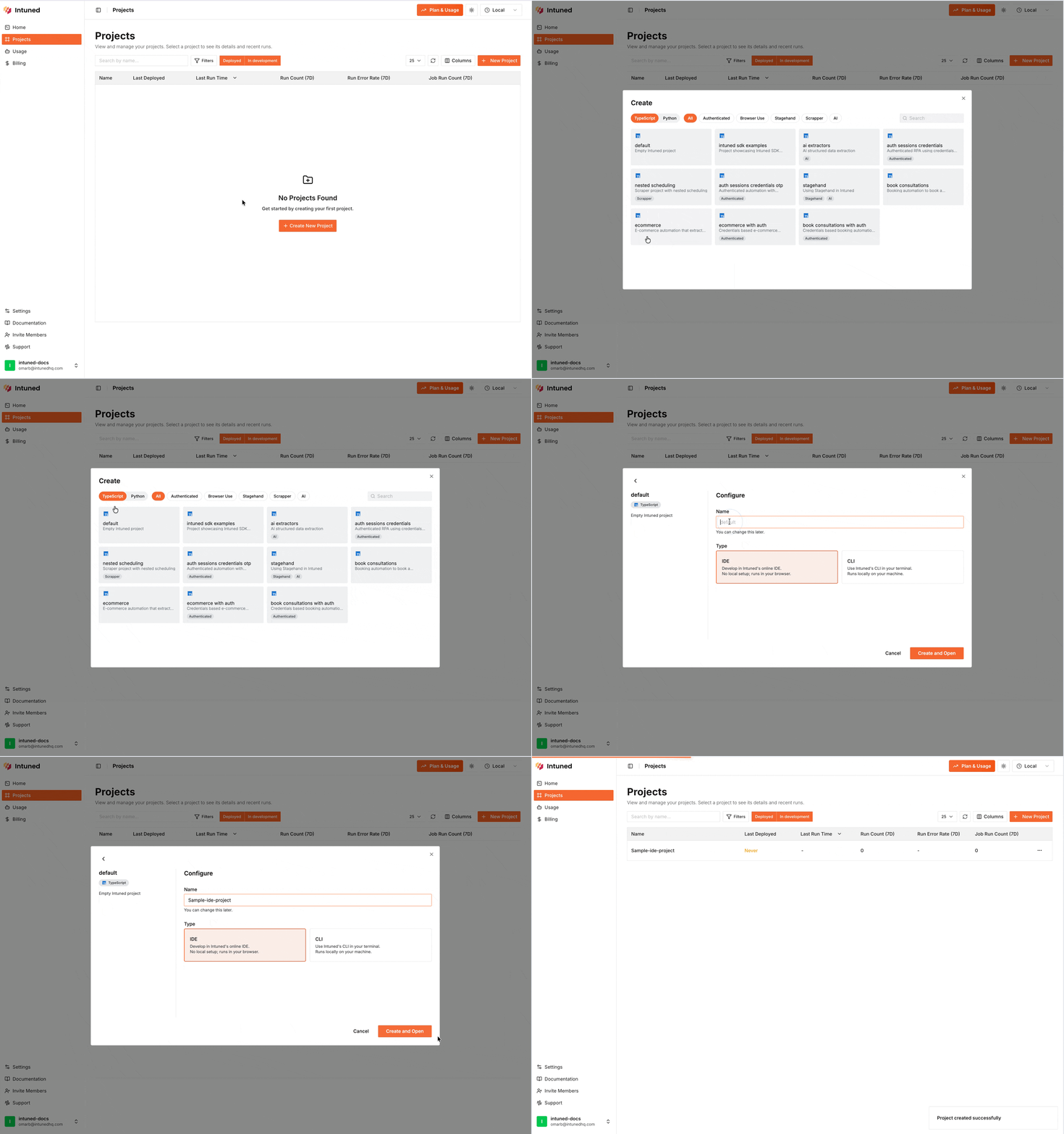
To create a project that runs in the Online IDE:- Go to app.intuned.io/projects
- Select Create Project
- Choose your language (TypeScript or Python)
- Select a template or start from scratch
- Name your project
- Ensure “IDE” is selected as the project type (not CLI)
- Select Create and Open
IDE interface overview
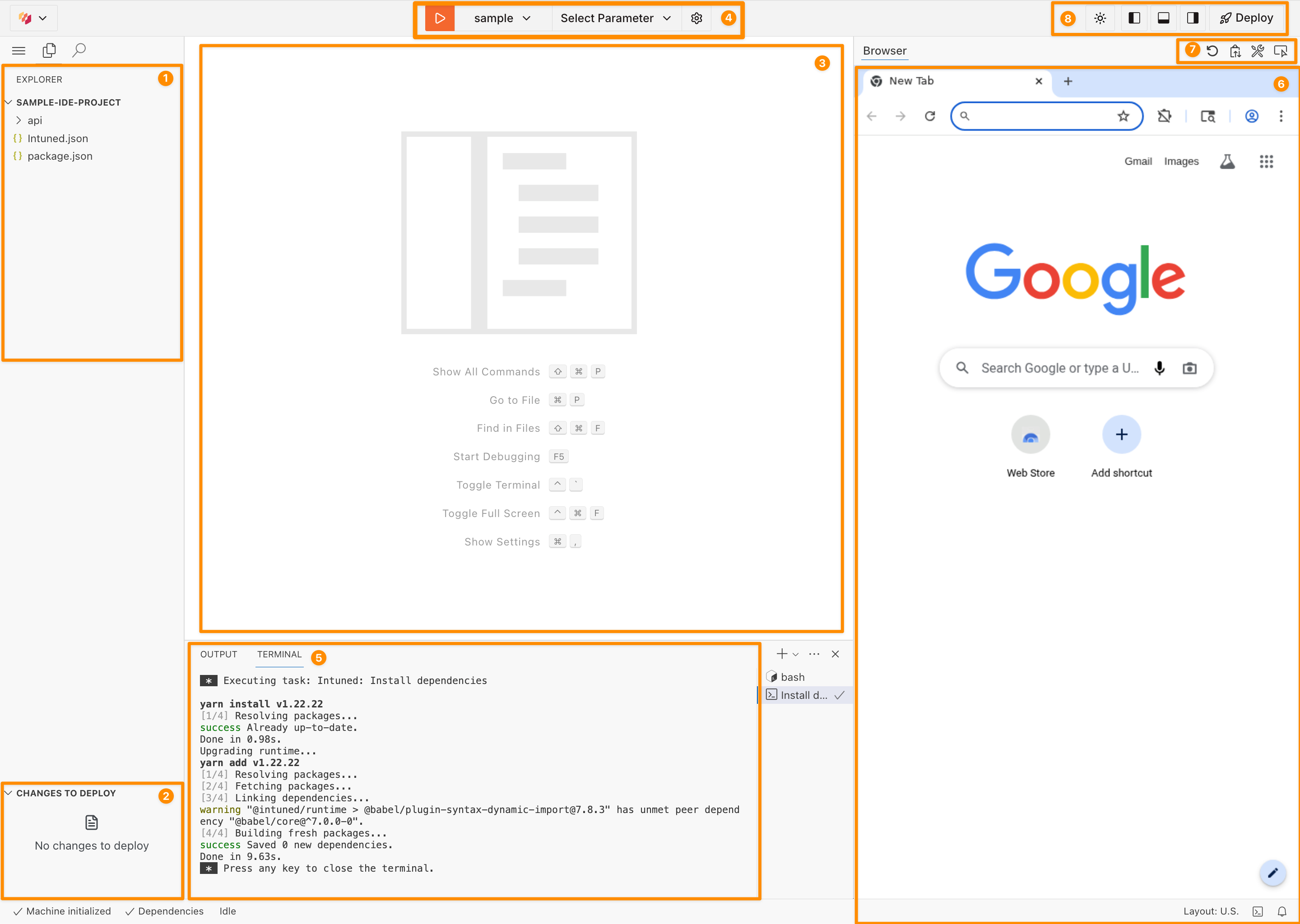
1. File Explorer (Top Left Sidebar)
The file explorer displays your project’s folder structure:2. Changes to deploy (Bottom Left Sidebar)
Shows changes that will be included in your next deployment.3. Code Editor (center panel)
A VS Code-based editor with syntax highlighting, IntelliSense, and familiar keyboard shortcuts.4. Run Controls (Top Center Toolbar)
Select an API, configure parameters, and start execution with the Play button.5. Terminal (Bottom panel)
Displays execution logs, traces, and output from your automation runs:- OUTPUT tab - Shows VS Code extension logs and messages
- TERMINAL tab - Shows command output such as
yarn installorintuned run api
You can’t use the terminal to run arbitrary commands. It only displays output
from IDE-executed commands.
6. Browser Panel (Right Panel)
A live browser view that shows your automation executing in real-time. Watch exactly what your code does and debug UI issues immediately.7. Browser Controls (Above Browser Panel)
- Restart Browser - Restarts the browser instance
- Clipboard - Copy text from the browser to your local clipboard
- DevTools - Opens browser dev tools for debugging
- Reliable Selector - Generates reliable selectors for elements
8. View Controls + Deploy Button (Top Right Toolbar)
- Toggle Sidebar - Show/hide the left sidebar
- Toggle Terminal - Show/hide the bottom terminal panel
- Toggle Browser Panel - Show/hide the right browser panel
- Theme selector - Switch between light, dark, and system themes
- Deploy - Triggers project deployment
Development workflow
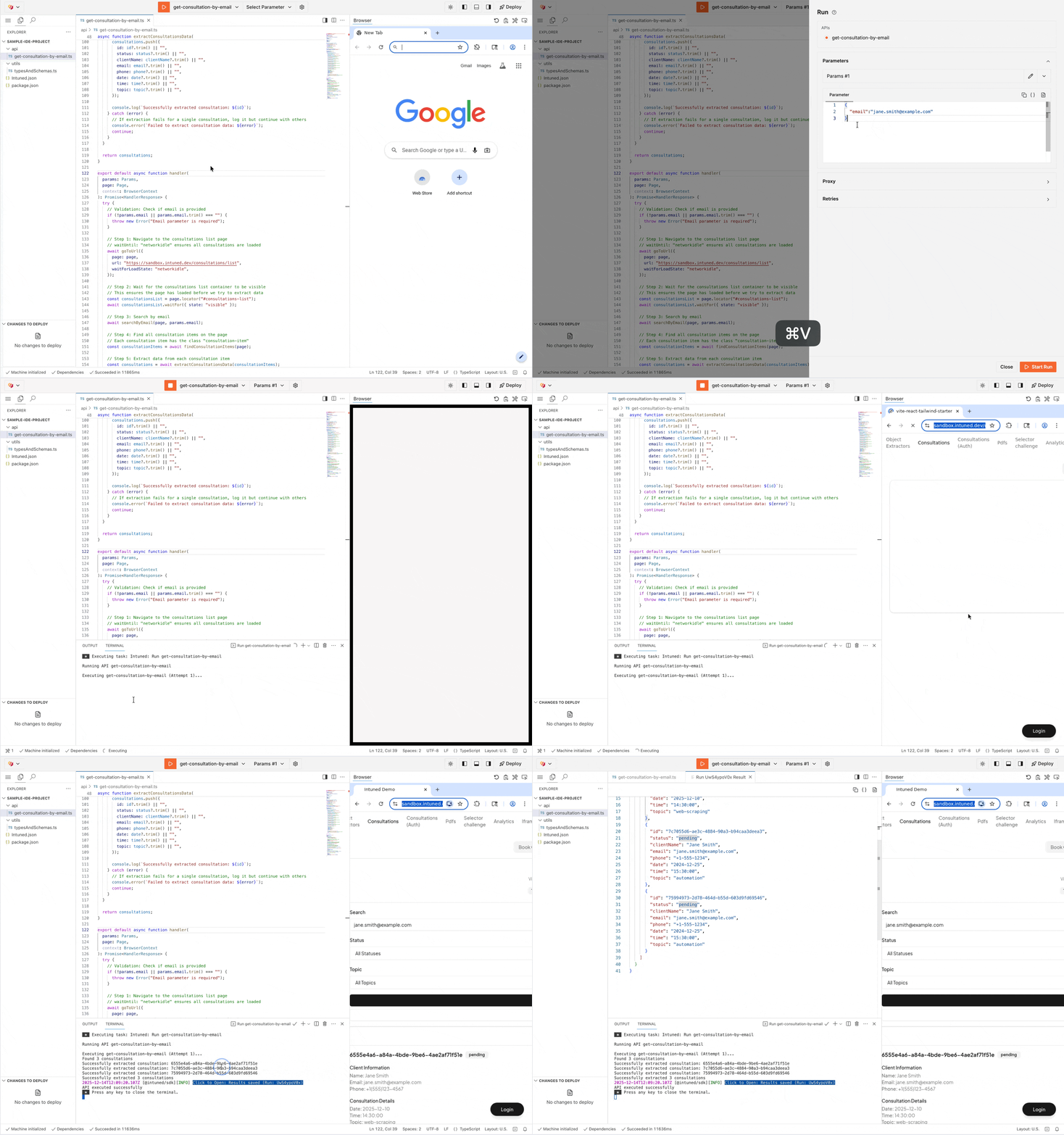
APIs in theapi/ folder become callable endpoints when deployed. Use the run controls to test any API with parameters before deploying—the browser panel shows your automation executing in real-time, so you can verify behavior visually.
Draft vs deployed versions
When developing in the IDE, your project exists in two states:- Draft version: The code currently in your IDE editor (not yet live)
- Deployed version: The code running in production (available via API endpoints)
How deployment works
When you select Deploy, we build and validate your code, run health checks, and deploy if all checks pass. Only the deployed version is accessible via Standalone Run APIs and Jobs—draft changes don’t affect production until you deploy again.Work with AuthSessions
For projects that require authentication (logging into websites before automation or persisting browser sessions between runs), you can enable AuthSessions in your IDE project. See AuthSessions for details.Enabling AuthSessions
- Open
Intuned.jsonin your project - Set
"authSessions": truein the configuration
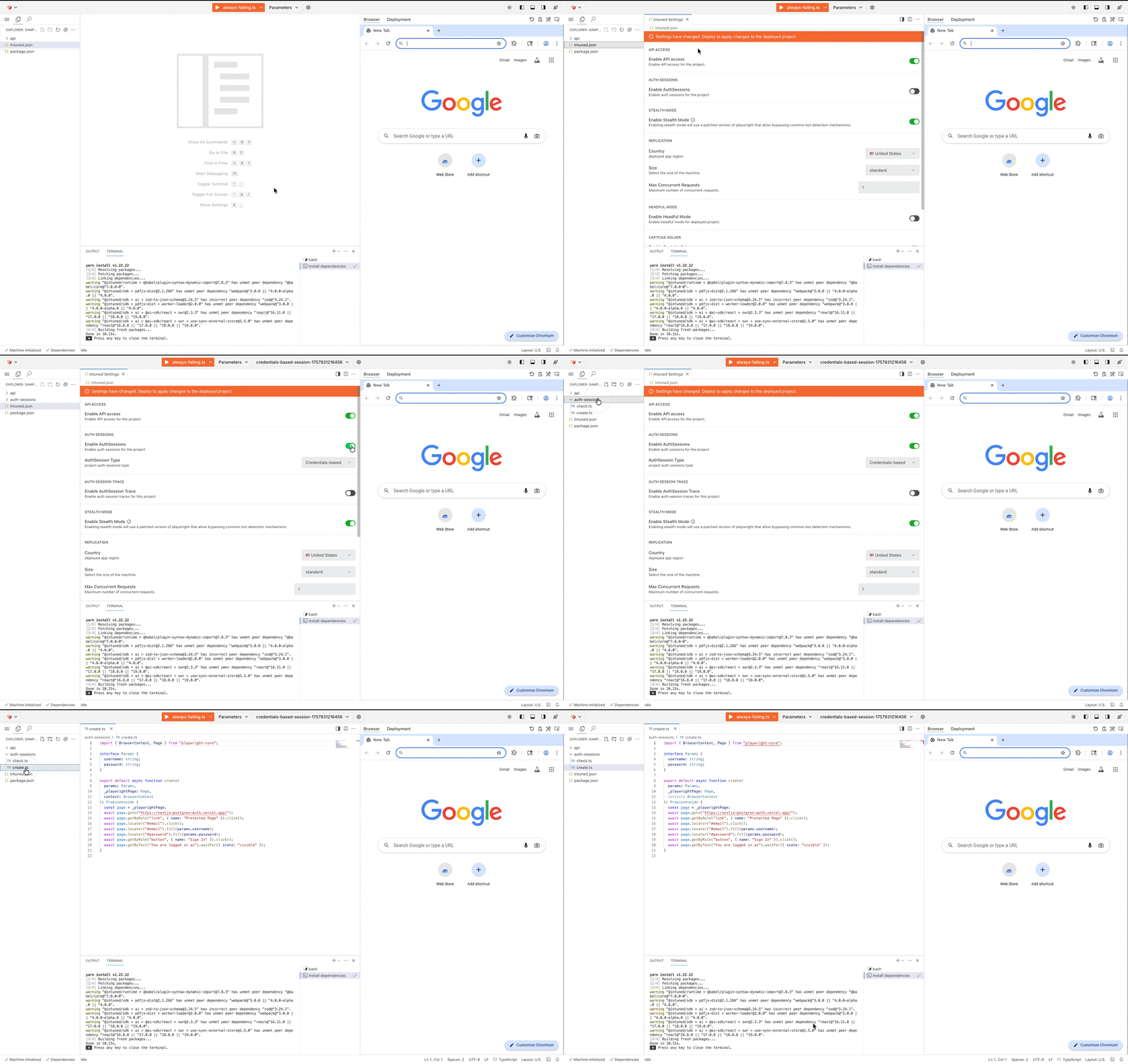
auth-sessions/create- Handles the login/authentication processauth-sessions/check- Validates if the session is still valid
Testing authenticated APIs
Before running APIs that require authentication:- Create an AuthSession by running
auth-sessions/create - Run your API - it will now use the newly created AuthSession
- If you have multiple AuthSessions, select which one to use from the dropdown in the top toolbar
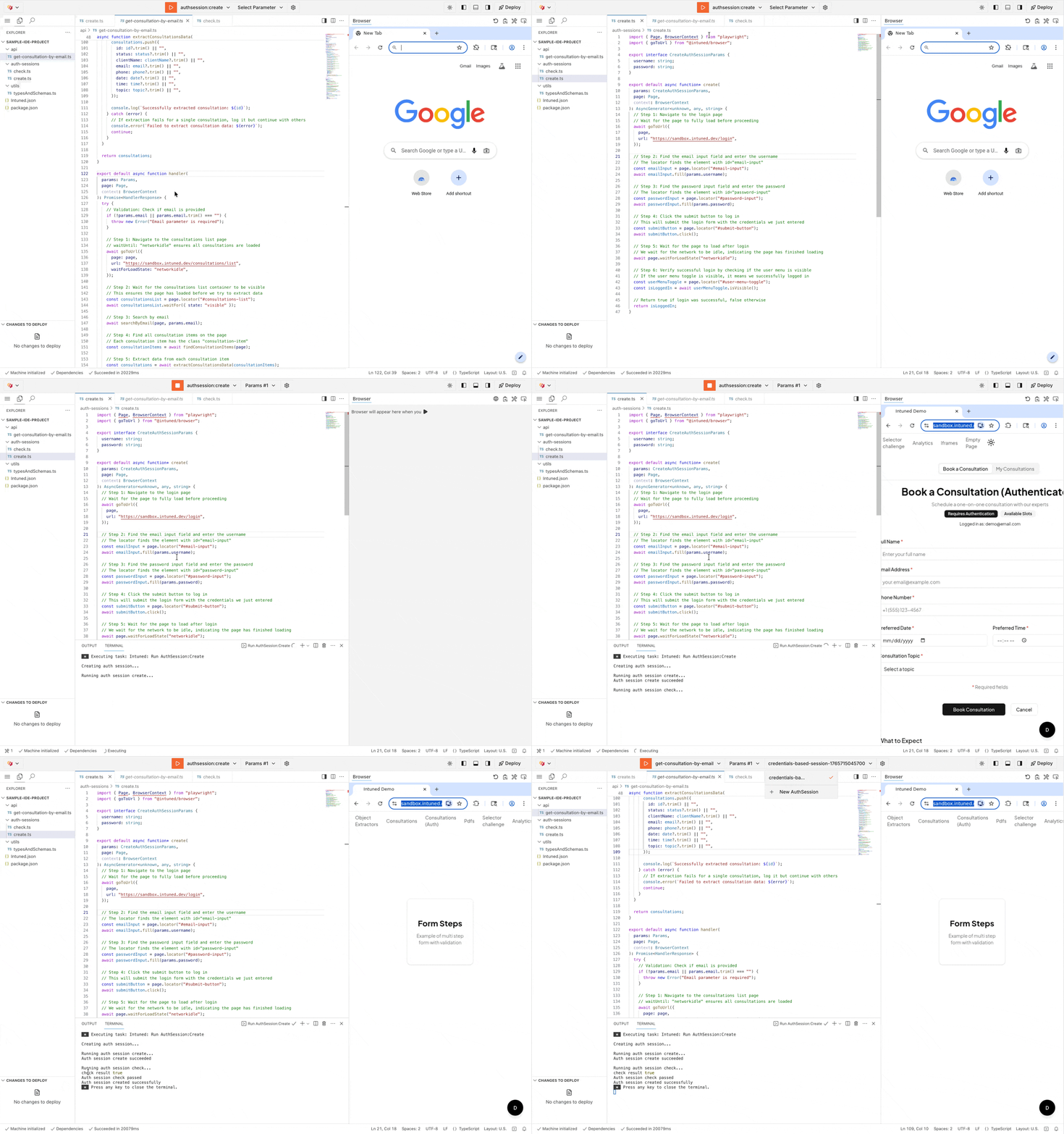
- Credentials-based: Use
auth-sessions/createto create and save a browser session - Recorder-based: Record yourself logging in via the browser panel, then save the session when done
Deploy your project
When you’re ready to make your automation available as a live API:- Select Deploy in the top-right toolbar
- Watch the live deployment logs as your project is built and deployed
- Wait for “Ready” status indicating successful deployment
If deployment fails, the IDE will show error logs. Fix the issues in your code
and try deploying again. Your previous deployed version remains active until a
successful deployment completes.
Intuned settings file (Intuned.json)
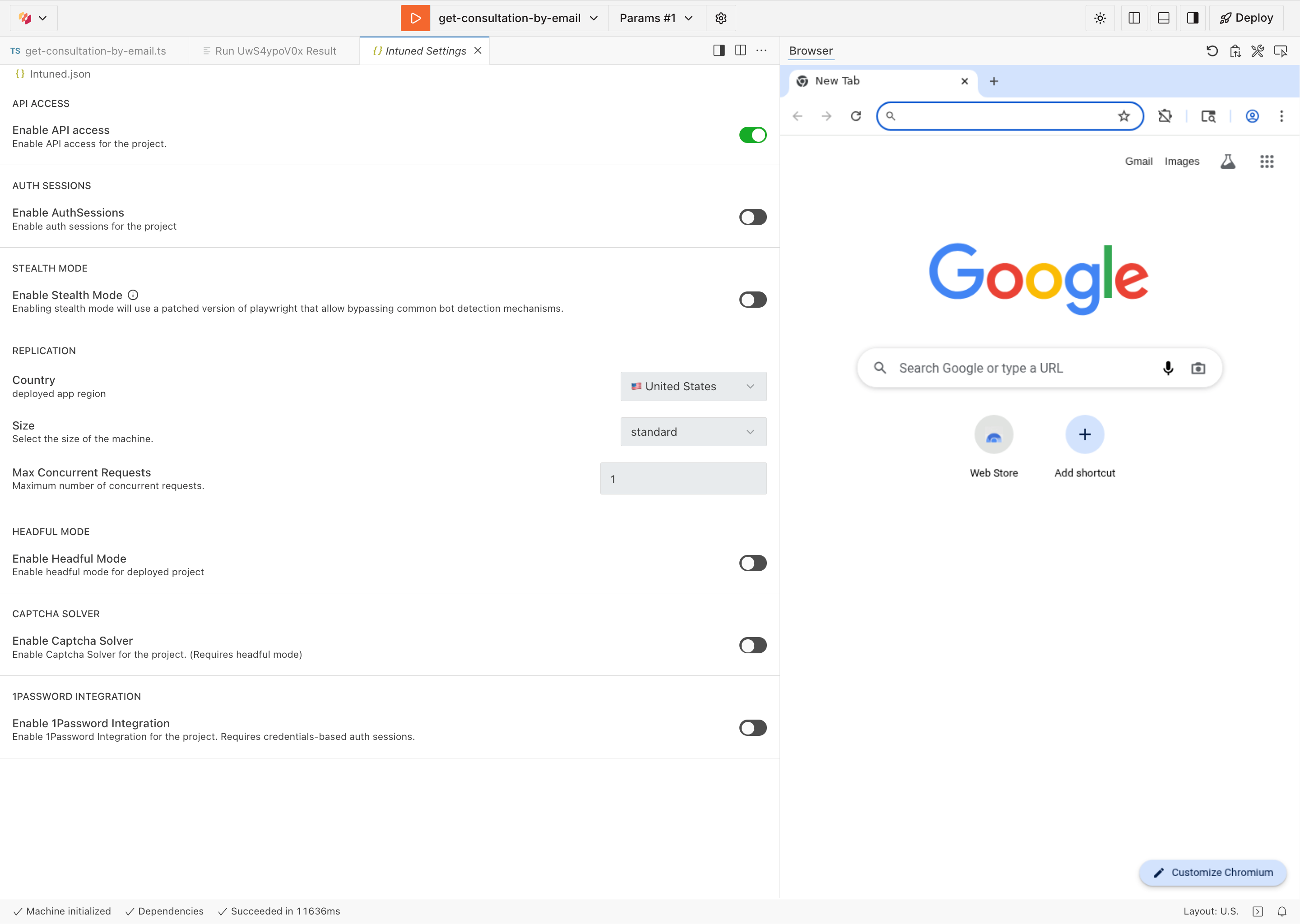
IDE projects useIntuned.json for configuration, but unlike CLI projects, you have a controlled UI to modify settings. Open Intuned.json in the file explorer to view and edit settings.
See the Intuned settings file for details on each configuration value.
Best practices
Test thoroughly before deploying
Test thoroughly before deploying
Always run your APIs multiple times in the IDE with different parameters to ensure they work correctly. Use the real-time browser view to catch issues early.
Use AuthSessions for authenticated workflows
Use AuthSessions for authenticated workflows
If your automation requires logging in, enable AuthSessions and test the
authentication flow in the IDE before deployment. Ensure
auth-sessions/check
passes consistently and is performant.Leverage the Intuned Agent
Leverage the Intuned Agent
Use the Intuned Agent to create and edit IDE projects through natural language. The Agent can only work with IDE projects, not CLI projects.
Limitations
No Git integration: The IDE doesn’t integrate with Git, but you have full versioning and deployment history built in. For Git workflows, use the Local CLI. Single developer only: Multiple people cannot make edits on the same IDE project simultaneously. No local IDE choice: You must use Intuned’s web-based editor. If you prefer VS Code, JetBrains, or other IDEs, use the CLI approach. Intuned Agent requires IDE: The Intuned Agent only works with IDE projects, not CLI projects.FAQs
Can I convert an IDE project to CLI or vice versa?
Can I convert an IDE project to CLI or vice versa?
Not directly. IDE and CLI projects have different structures. You’ll need to create a new project of the desired type and copy your code manually.
What happens to my draft if I don't deploy?
What happens to my draft if I don't deploy?
Your draft remains in the IDE. The deployed version continues running
unchanged. You can keep drafts indefinitely without deploying.
When to use IDE vs CLI
| Feature | Online IDE | Local CLI |
|---|---|---|
| Setup | Zero setup, browser-based | Requires Python or Node runtime and Intuned CLI |
| Use case | Use Intuned Agent to build and edit scrapers Use platform-specific features like stealth and captcha solving Quick prototyping | Integrating your own CI/CD with version control and predefined team workflows |
| Version control | No Git integration Use built-in deployment tracking and history management | Full Git workflow that works with your team and your own repo |
| Collaboration | Single developer (no concurrent editing) | Multiple developers with version control |
| IDE choice | Intuned’s web-based editor | Use your preferred IDE (VS Code, JetBrains, etc.) |
Related resources
Local development CLI
Develop locally with your own IDE and Git workflow
Intuned Agent
AI assistant that creates and edits IDE projects
AuthSessions
Build authenticated automations
How Intuned works
Understand Intuned’s architecture and execution model