

Overview
Intuned provides full visibility into your automation Runs. See what parameters were used, what results came back, and what failed. Track executions at three levels:- Runs: Individual API executions with inputs, outputs, and status
- Attempts: Each retry within a Run, with logs and traces
- JobRuns: Batch executions containing multiple Runs
View Run records
Every time you execute an API in Intuned, a Run record is created. A Run represents a single logical execution and tracks:- Input parameters and configuration (timeouts, retries, auth settings)
- Execution status and timing
- Output results or error details
- All retry attempts made during execution
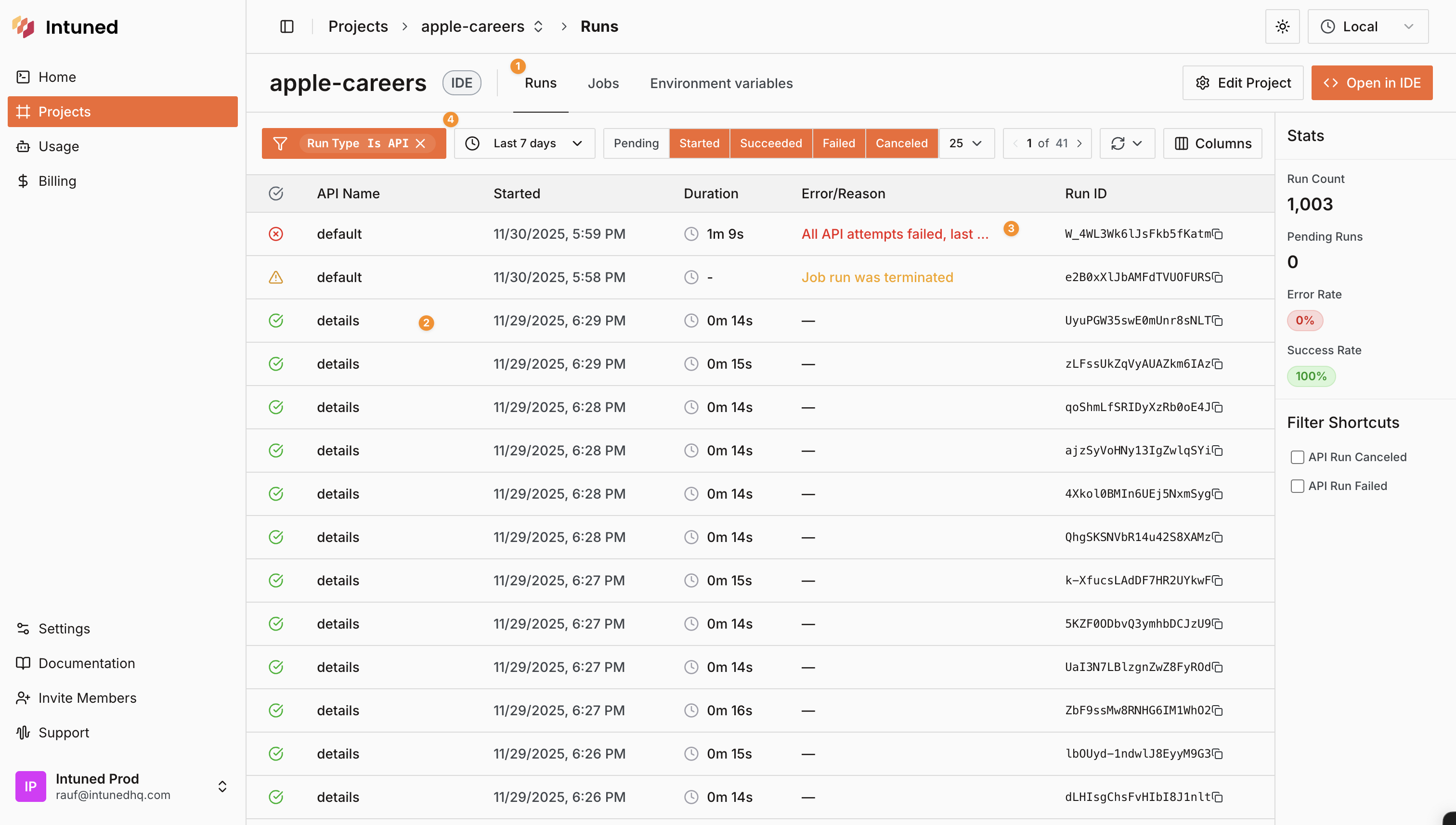
- Find the Runs table in the Runs section of the project dashboard
- Each Run row shows a single API execution with its status, timing, duration, and more
- Scan failed Runs by checking the status and the related error/reason column. Check more about error types in our error code reference
- Use the filters at the top to narrow down Runs by status, date range, job, API, and more
View Run details
Click any Run record from the table to open the Run details page. This page shows details about that specific API execution.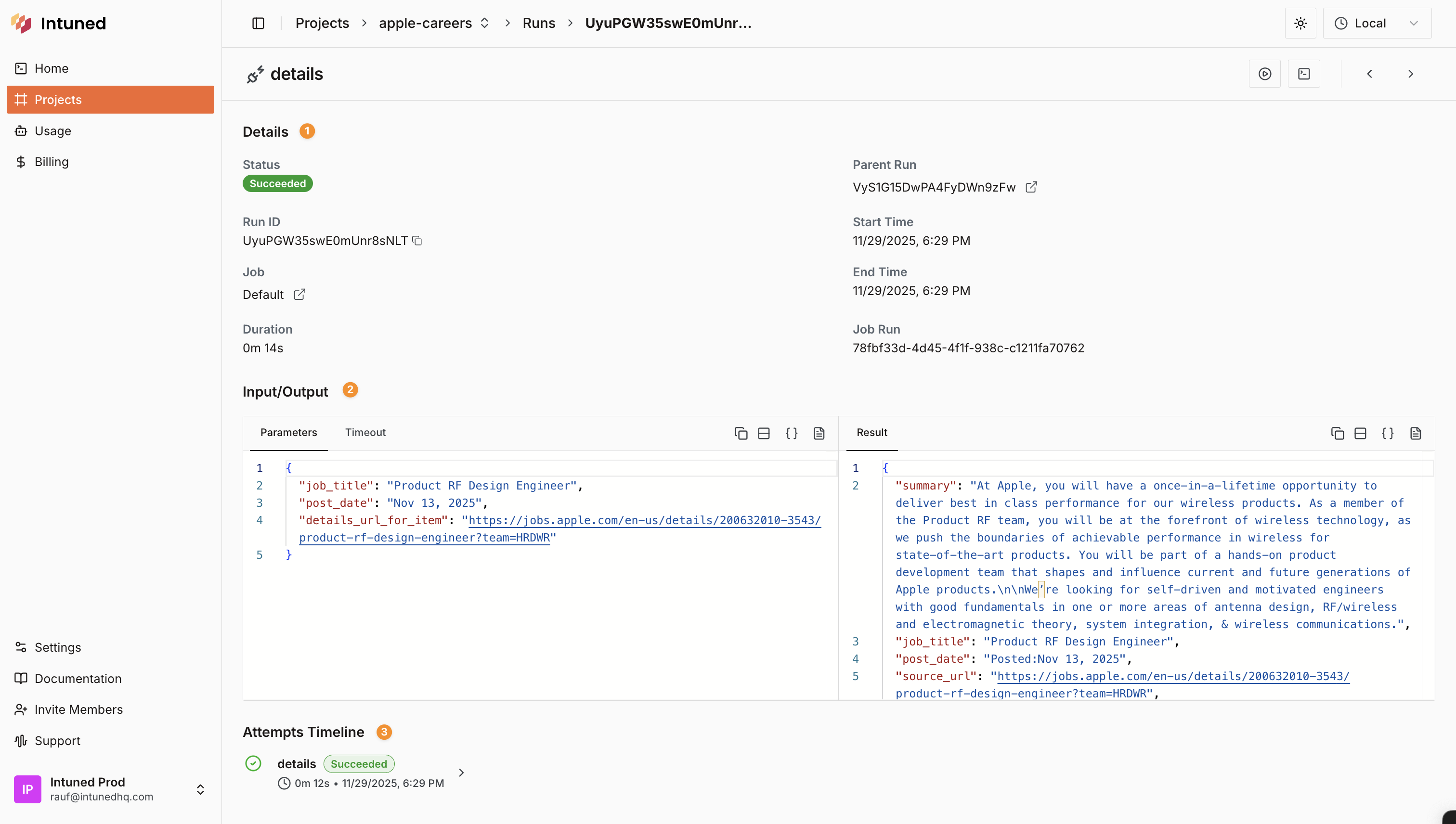
- Metadata section: Displays the Run’s ID, status, duration, timing, associated Job and AuthSession (if any), and API name
- Input/Output section: Split into two panels, this section shows the input parameters used for the Run on the left and the output results on the right. You can switch between different tabs to view results, extended payloads, errors, and more
- Attempts Timeline: This visual timeline shows all attempts made for this Run, including their statuses, durations, and timestamps. Click any attempt to view more details, including logs and traces. Learn more about the attempts and dependencies execution model.
Runs with AuthSession
When a Run is configured to use an AuthSession, you’ll notice additional fields and behaviors in the Run details page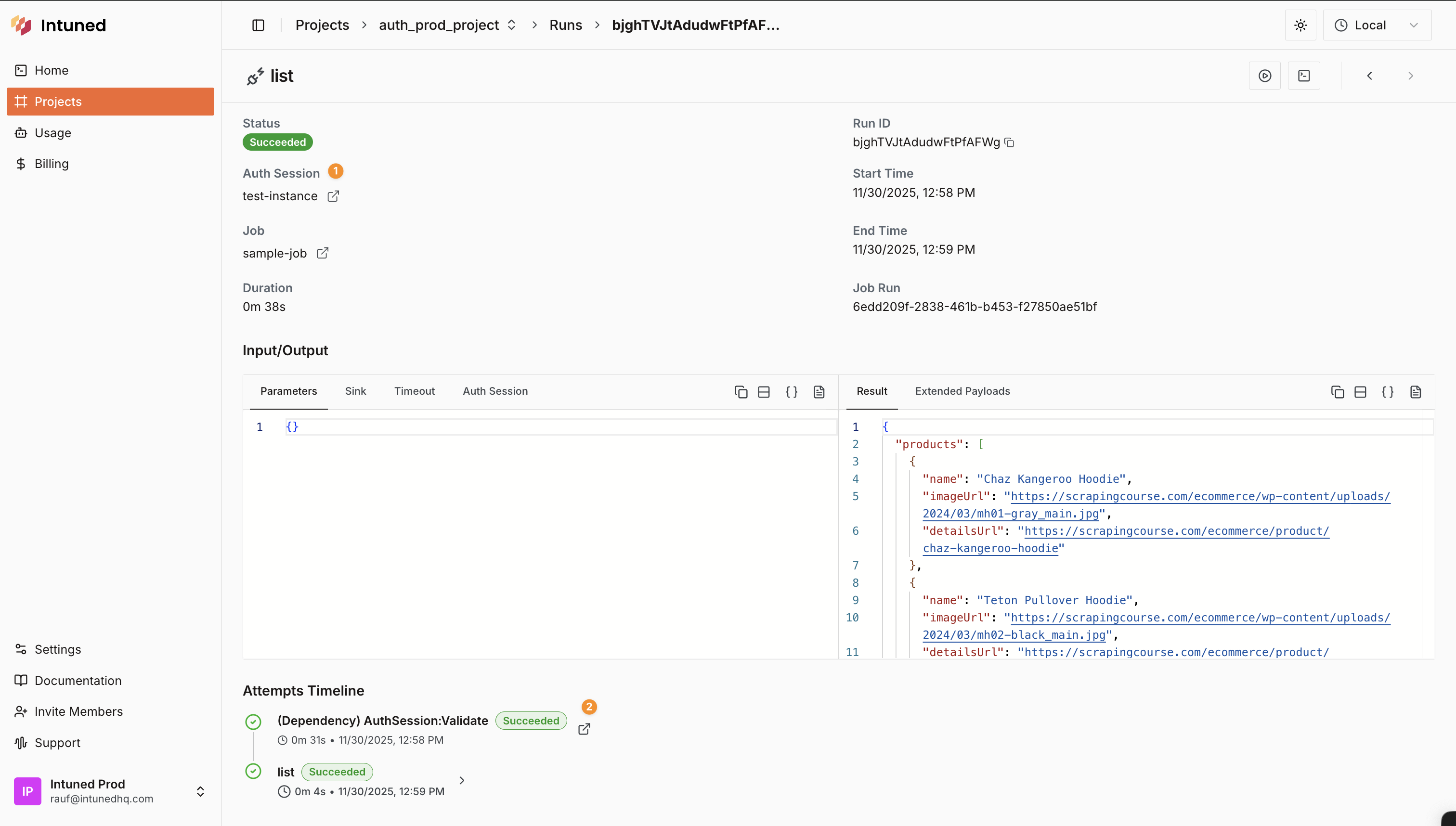
- AuthSession field in the Metadata section indicates which AuthSession was used for this Run
AuthSession:Validatedependency appears in the Attempts Timeline before each API attempt to ensure the session is valid. Click it to view its own Run details. Learn more about AuthSession.
Inspect Run attempts
Each Run can have multiple Attempts, especially if retries are enabled or if there are dependencies involved (like AuthSessions). Each attempt represents a single try to execute the API automation.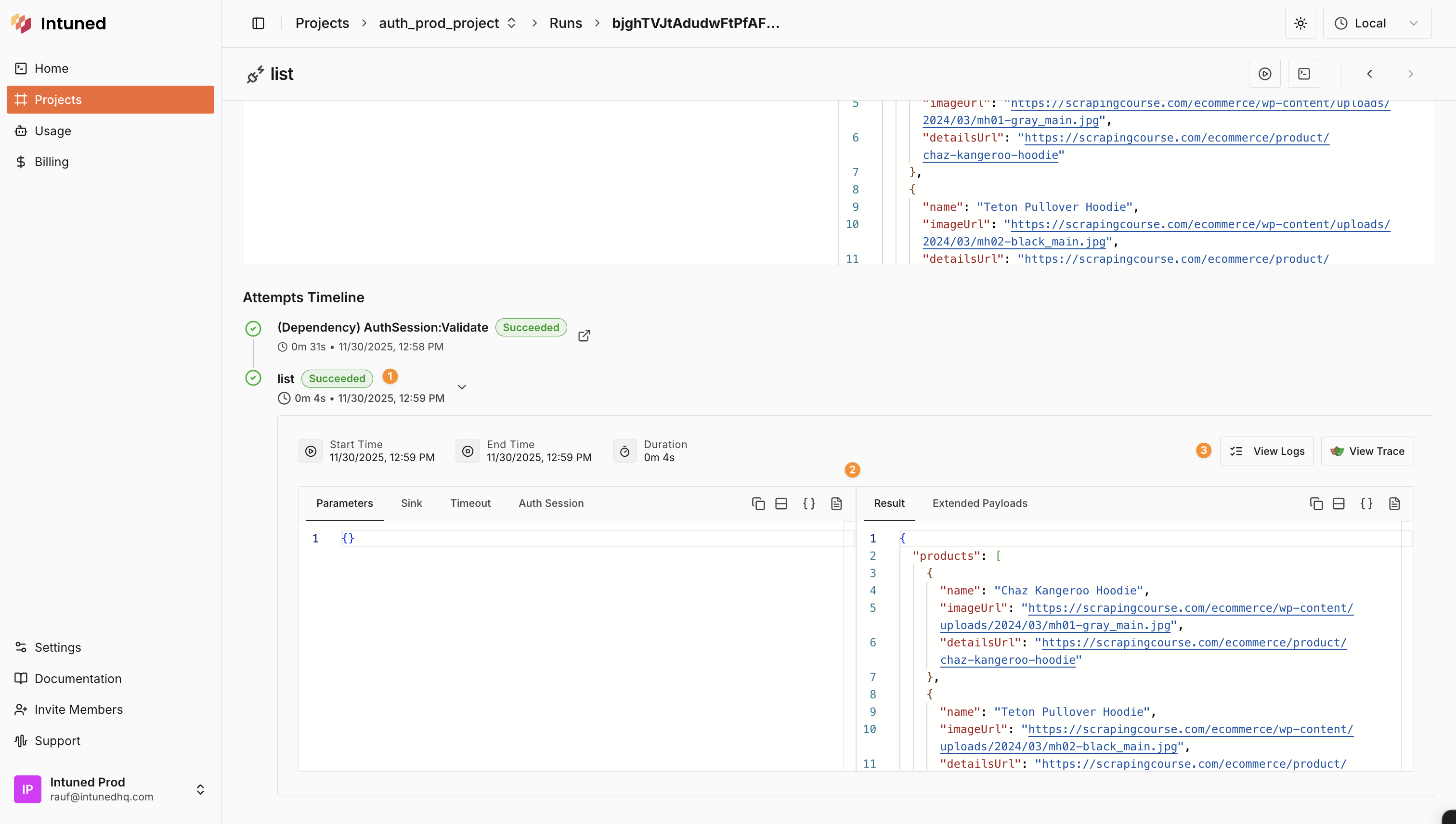
- View the attempt entry in the Attempts Timeline, showing API name, status, duration, and timestamp
- Click an attempt to view detailed input parameters and output results
- Access logs and traces for debugging and analysis
Debug failed attempts with traces
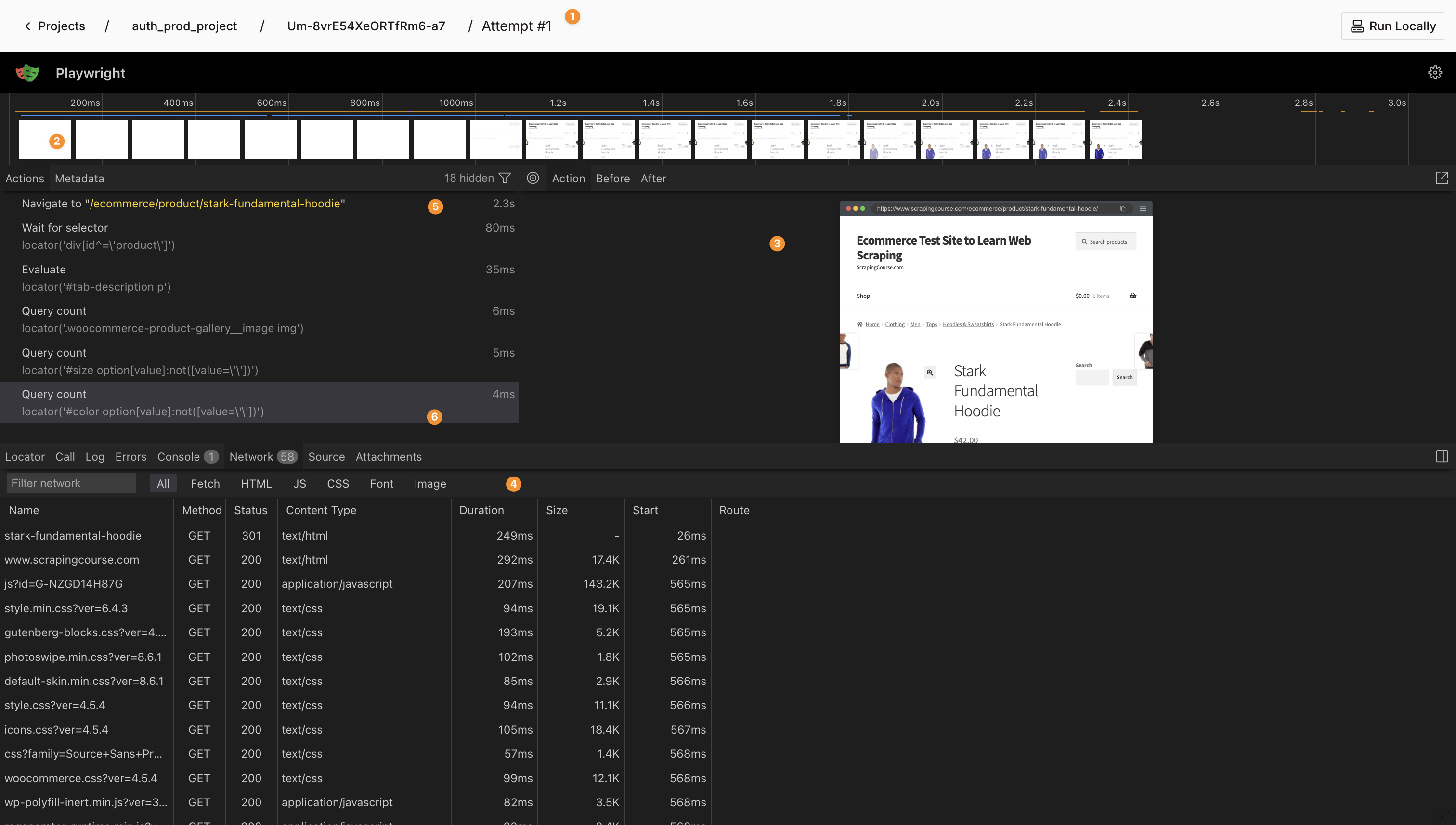
- Select View Trace for the failed attempt to open Playwright’s trace viewer
- Replay the browser session step-by-step
- Check if a bot detection mechanism was triggered
- Inspect network requests to see if any resources failed to load
- Check DOM snapshots to understand the page state at each step
- Analyze failed selectors or actions that caused the error
Monitor JobRuns
In addition to individual API Run records, Intuned provides a way to visualize and monitor the execution of entire Jobs through JobRun records. A JobRun represents a single execution of a Job. It may include multiple API Runs. Learn more about Jobs.View JobRun details
Navigate to the Jobs section within your project. You’ll see a list of all your defined Jobs. Click any Job to view its details.
- Edit the Job configuration
- Trigger a JobRun manually
- Pause or resume scheduled executions
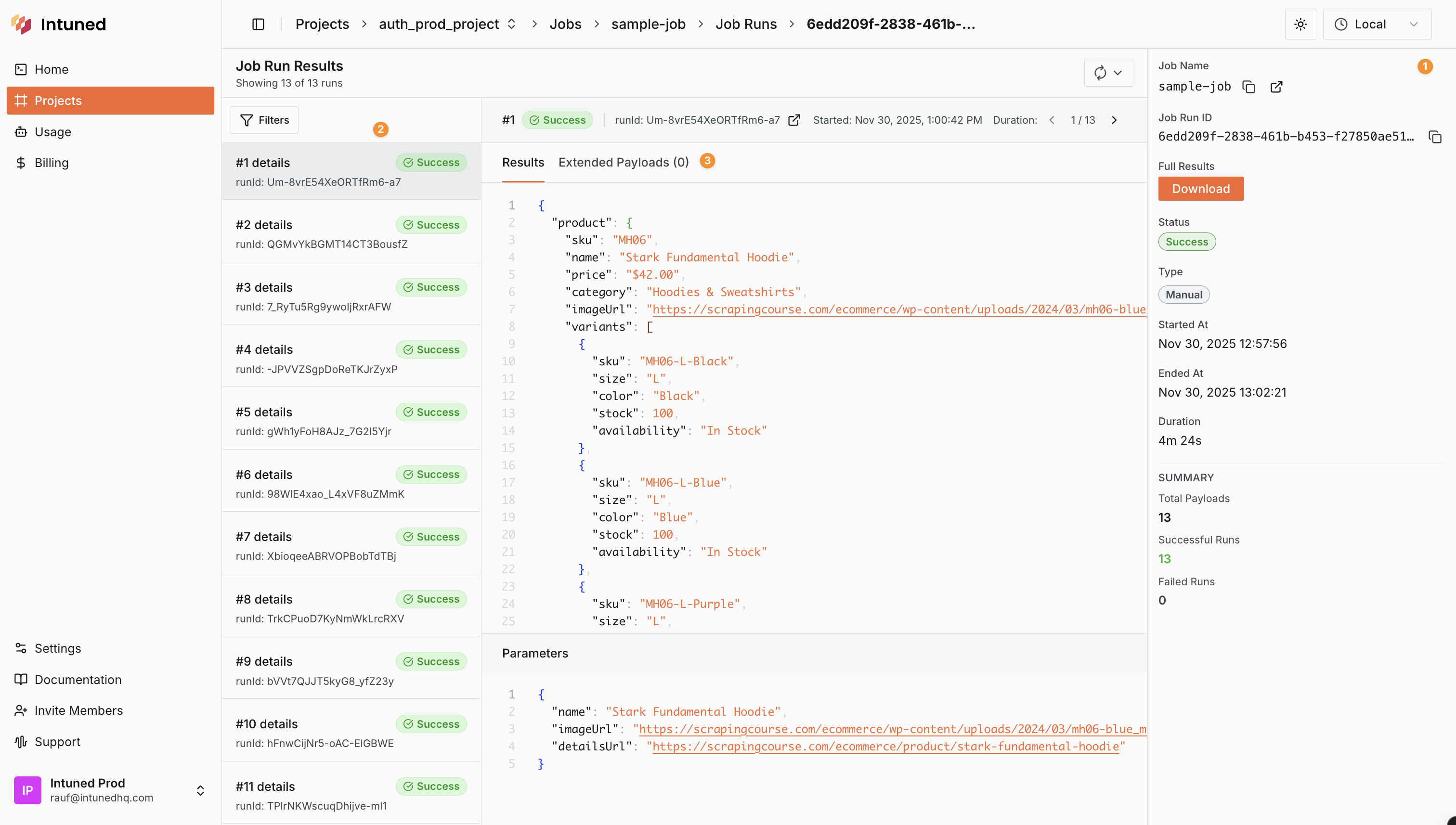
- A detailed section with all JobRun information like status, start time, duration, summary of payloads executed, and more
- A filterable list of all the API Runs that were part of this JobRun, including their statuses, durations, and timestamps
- For each API Run within the JobRun, you can click on it to view its own Run details, with the result and parameters of this specific execution
Related resources
Error codes reference
Understand error types and what they mean
Run API reference
Fetch Run details programmatically
AuthSessions
Authenticated browser automations
Jobs and batched executions
Schedule and batch your automations