

Overview
By the end of this guide, you’ll have an Intuned project that triggers an RPA automation (via standalone Runs) and sinks its results to S3. You’ll:- Create an S3 bucket and configure AWS credentials for Intuned.
- Trigger a Standalone Run with an S3 sink.
Prerequisites
You’ll need:- An AWS account with S3 access.
- An Intuned account.
This guide assumes familiarity with Intuned Projects and standalone Runs. If you’re new to Intuned, start with the getting started guide.
When to use S3 integration with Standalone Runs
Standalone Runs expose a start and result API for executing single API calls on demand. To receive results or check on the Run status, you poll the result endpoint. S3 integration automatically delivers the results to your S3 bucket as a JSON file. From there, you can process results using AWS tools like Lambda—or connect to other services.Guide
1. Create an S3 bucket and access credentials
Create an S3 bucket and IAM credentials that Intuned can use to write data:Create an S3 bucket
- Log in to the AWS Management Console
- Navigate to the S3 service
- Select Create bucket
- Enter a unique bucket name (e.g.,
my-intuned-data)
Configure bucket settings
When creating your bucket:
- Object Ownership: Set to “Access Control Lists (ACLs) disabled”
- Block Public Access: Keep all public access blocked (recommended for security)
- Bucket Versioning: Optional - enable if you want to keep historical versions of files
- Encryption: Optional - enable default encryption for data at rest
- Select Create bucket to finish
Intuned only needs write access to your bucket, so keeping public access blocked is safe and recommended.
Create an IAM user for Intuned
Create a dedicated IAM user with limited permissions for Intuned:
- Navigate to IAM in the AWS Console
- Select Users in the left sidebar, then Create user
- Enter a username (e.g.,
intuned-s3-writer) - Select Next, which takes you to the permissions page
- Select Attach existing policies directly
- Select Create policy (opens in new tab)
- Select the JSON tab and paste this policy:
- Replace
YOUR-BUCKET-NAMEwith your actual bucket name - Select Next, which takes you to the Review page
- Name the policy
IntunedS3WritePolicy - Select Create policy
Attach policy and generate access keys
Back in the user creation flow:
- Refresh the policies list
- Search for
IntunedS3WritePolicy - Select the checkbox next to the policy
- Select Next to go to the Review page
- Select Create user
- Go to the Security credentials tab
- Select Create access key
- Choose Application running outside AWS and select Next
- Select Create access key
- Copy the Access key ID - you’ll need this for Intuned
- Copy the Secret access key - you’ll need this for Intuned (only shown once)
- Download the CSV or save these credentials securely
2. Trigger a Run with an S3 sink
Now that your S3 bucket is ready, add an S3 sink to a Run so results are delivered to your bucket.Prepare a Project
You can use an existing Project or create a new one. For this example, we’ll use thebook-consultations-quickstart project that you can deploy using the Deploy your first RPA quickstart tutorial.
Trigger a Run with S3 sink
- Dashboard
- API
- Go to app.intuned.io
- Open your
book-consultations-quickstartproject - Select the Runs tab
- Select Start Run
- Fill in the Run details:
- API:
book-consultations - Parameters:
- API:
- Enable sink configuration and add your S3 details:
- Type:
s3 - Bucket: Your S3 bucket name (e.g.,
my-intuned-data) - Region: Your AWS region (e.g.,
us-west-2) - Access Key ID: Your IAM user access key
- Secret Access Key: Your IAM user secret key
- Prefix (optional): A path prefix to organize files (e.g.,
book-consultations-data/) - Skip On Fail (optional): Check to skip writing if the Run fails.
- Type:
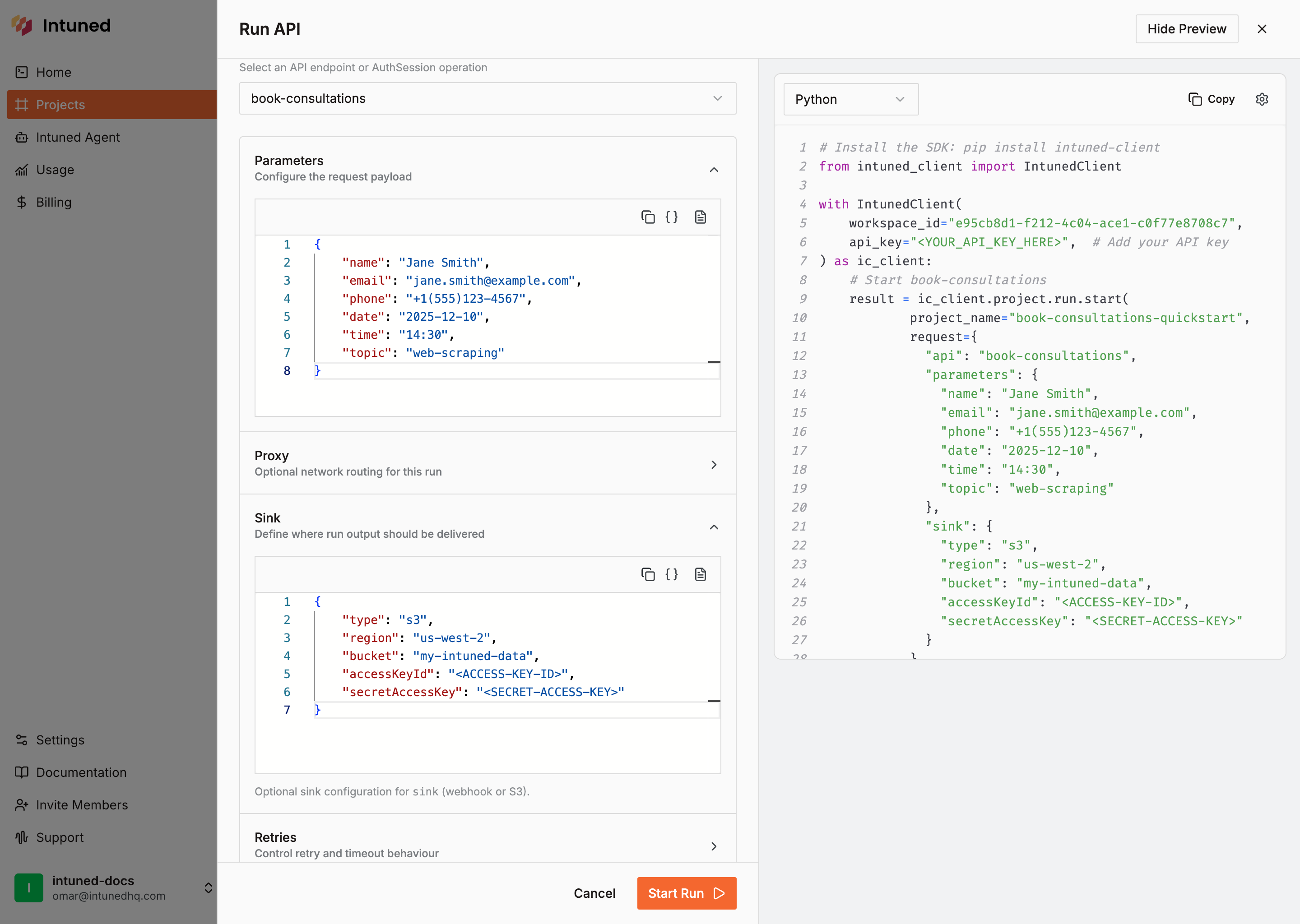
- Select Start Run
Inspect data in S3
After the Run completes, view your data in S3:- Navigate to the S3 Console
- Open your bucket (e.g.,
my-intuned-data) - Navigate to
{prefix}/runs/{runId}.jsonand examine the file.
Configuration options
For full details on S3 sink configuration and available options, see the S3 Sink API Reference. Key configuration fields:| Field | Required | Description |
|---|---|---|
bucket | Yes | S3 bucket name |
region | Yes | AWS region (e.g., us-west-2) |
accessKeyId | Yes | AWS access key ID |
secretAccessKey | Yes | AWS secret access key |
prefix | No | Path prefix for organizing files |
skipOnFail | No | Skip writing failed Runs to S3 (default: false) |
endpoint | No | Custom endpoint for S3-compatible services |
forcePathStyle | No | Use path-style URLs for S3-compatible services |
Processing data from S3
Once data lands in S3, you can process it in various ways depending on your needs. A common pattern is using an AWS Lambda function that triggers automatically when a new file arrives. Typical processing tasks include:- Normalizing the data structure
- Removing empty fields
- Validating against a schema
- Triggering workflows such as sending emails, updating billing systems, or invoking other services
Best practices
- Use least privilege IAM policies: Create a dedicated IAM user for Intuned with only
s3:PutObjectpermission. Restrict access to specific bucket paths using resource ARNs. Never use root account credentials. - Organize data with prefixes: Use meaningful prefix structures like
{environment}/{project-name}/{date}/to make data easier to find, manage, and set lifecycle policies on. - Set up lifecycle policies: Reduce storage costs by transitioning older data to S3 Glacier and deleting data you no longer need. This can reduce costs significantly for infrequently accessed data.
- Monitor usage and costs: Enable S3 Storage Lens for bucket-level insights, set up CloudWatch alarms for unexpected growth, and use Cost Explorer to track costs by bucket.
Related resources
S3 Sink API Reference
Complete API documentation for S3 sink configuration and options
Runs (Single API executions)
Learn more about running single APIs
Jobs
Learn about running batched API executions with Jobs
Monitoring and traces
Debug and monitor your automation runs with traces and logs