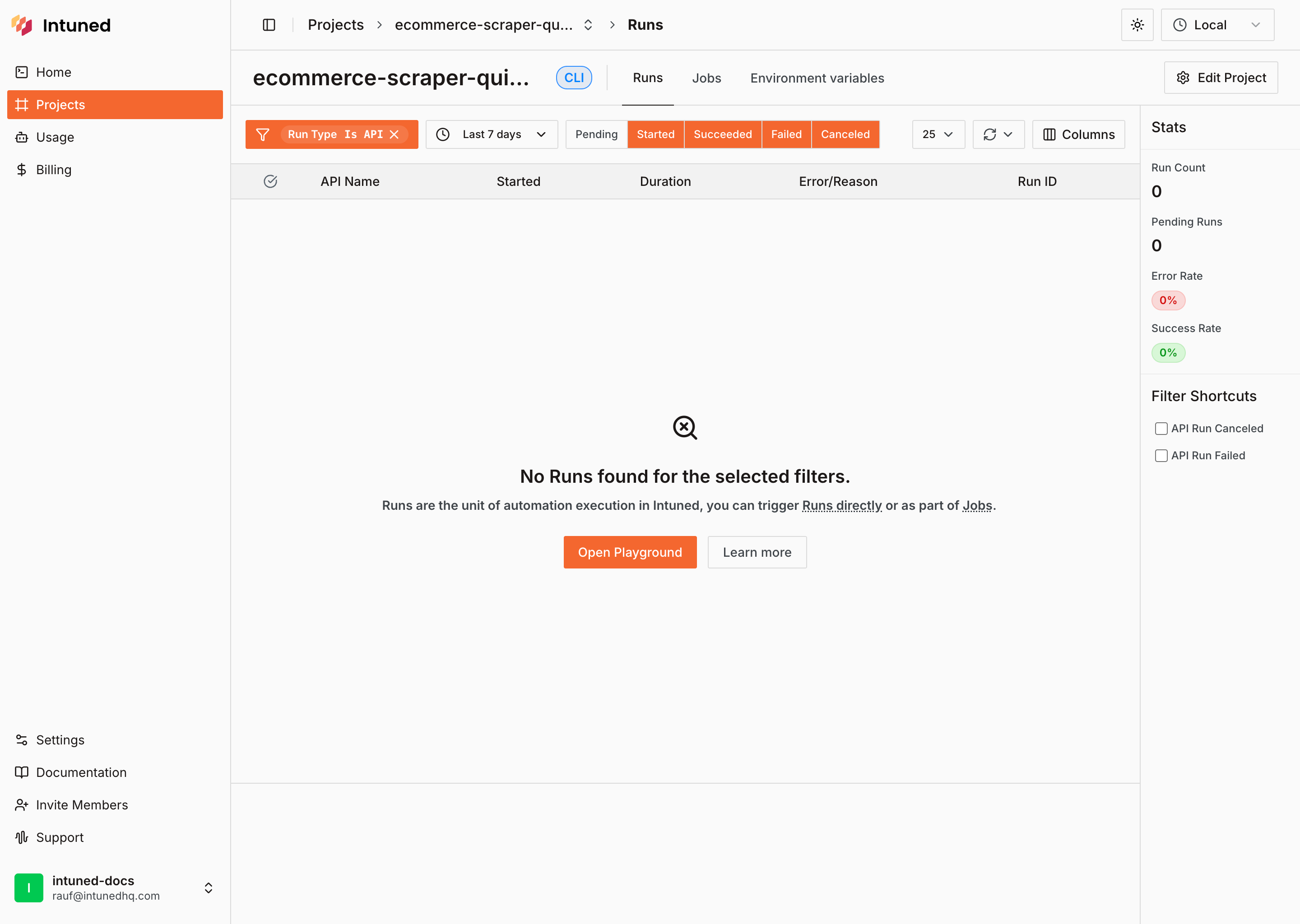
What is a project?
A Project is both your automation code (browser automation APIs written in Python/TypeScript using Playwright) and your runtime environment where all execution data lives (Run records, Jobs, browser traces, logs, and auth sessions).
Find all your projects on the Projects page in the dashboard.
Managing projects
Creating a new project
Create a new Python or TypeScript project from the Projects page or the Home page. Choose between creating a CLI-based project or an IDE project.
Renaming a project
Change your project’s name using the Edit Project button in the header of your project page.
Renaming a project may affect your integrations since the project name is part of the URL used to trigger Runs via API.
Duplicating a project
Duplicate a project directly from the projects table. The duplicated project’s name will include ” - copy” and a timestamp to differentiate it from the original.
Undeploying a project
Undeploy a project directly from the projects table.
Undeploying a project will pause all active Jobs and API access to this project will be restricted.
Deleting a project
Delete a project directly from the projects table. Deleting a project is irreversible and removes all associated data including Runs, Jobs, browser traces, logs, and AuthSessions.
Deployed vs undeployed projects
Deployed projects can be consumed via Runs or Jobs. You can trigger your automation APIs, schedule Jobs, and view execution history from the project page.
 Undeployed projects cannot be consumed. You can edit your code and prepare it for deployment, but you won’t be able to trigger Runs or Jobs until the project is deployed.

CLI vs IDE projects
CLI projects let you iterate and manage your code locally on your machine, then deploy to Intuned when ready. IDE projects let you edit and manage code directly within the Intuned IDE. IDE projects display an Open in IDE button on the project page.